01
Getting started
Download, install, and run. There is no account to create and nothing to configure before you begin. What you download is the free trial, and buying afterwards is a single one-off purchase. Bought on the website it arrives as an ordinary licence file you keep — no account, no activation, and it unlocks every computer you personally use, the Mac as well as the PC. The next section covers the trial and which computers a purchase unlocks in full.
What you need
| macOS | macOS 26, Apple Silicon or Intel |
| Windows | Windows 10 or later, 64-bit |
| Linux | 64-bit, glibc 2.35 or newer — Ubuntu 22.04+, Debian 12+, Fedora 36+, RHEL 9+ |
| Processor | Any 64-bit CPU, 4 cores |
| Memory | 8 GB |
| Disk space | About 1.5 GB |
| Network | Not required, at any point |
| Everything needed to recognise faces | Ships inside the app — no separate download |
| macOS 26 is a hard floor The Mac build will not launch on anything earlier — it is not a slow-but-works situation. Check Apple menu → About This Mac before you buy. There are two Mac downloads: take Apple Silicon unless About This Mac says Intel. |
What differs between the three systems
Almost nothing, and the exceptions are worth knowing before you buy. Every feature in this guide is the app's own work, done by models that ship inside it, so it behaves the same on all three systems. What differs is the handful of things the app asks your operating system to do rather than carrying itself — and those follow your platform rather than the app.
| Feature | macOS | Windows | Linux |
|---|---|---|---|
| Text in photos | Yes — part of macOS | Yes — part of Windows | Not available — the text actions are greyed out, with the reason in their tooltip |
| Camera RAW | Yes — as it comes | Yes, with Microsoft's free Raw Image Extension from the Store | Not available — RAW files are still listed and counted in your project, just not opened |
| HEIC photos | Read, and tags and fixes written back into the file itself | Read everywhere; to get the tags into a file, Export selected… hands you a fully tagged JPEG | |
| Photo captions | Yes | Yes, on all but the cheapest and oldest processors — budget Celeron and Pentium chips, and PCs from before 2013, lack an instruction set the built-in caption model needs. The app tells you if yours is one (Settings → Models & data), and captioning through Ollama still works there. The free trial will tell you before you buy. | |
| Reveal a photo | Finder, with the file picked out | Explorer, with the file picked out | Opens the folder containing it |
| Everything else | Identical — faces, people, duplicates, events, quality, colours, objects, captions, places, writing names and tags back into your JPEGs, and a project that moves freely between all three. | ||
|
Why those few are not ours to give you
Text recognition and camera RAW decoding are the only two things the app asks your operating system to do instead of bringing along itself. That is why neither needs a download from us, neither adds to the app's size and neither sends anything anywhere — and also why they follow your platform: Linux ships no system component for either. HEIC is the same problem from the other end. Rewriting one needs an encoder we are not allowed to include in a paid app; macOS already contains one, licensed on your machine's behalf, so that is the one platform where an HEIC can be tagged in place. Nothing is lost by working on the “wrong” machine. A project carries results rather than the engine that produced them, so text read on a Mac stays searchable on a PC, and files a machine cannot decode are still catalogued there, waiting for one that can. Scan a library on Linux and its text and its RAW photos are simply left for a Mac or PC to pick up later. |
Installing
-
Install. On macOS, open the downloaded
.dmgand drag PrivacyFirst Photo Organizer onto the Applications folder beside it — the disk image's window shows the same instruction and an arrow between the two — then eject the disk image and run it from Applications. On Windows, run the installer (it installs for your user only, no administrator password needed) or unzip the portable build anywhere you like. On Linux, download the.AppImage, mark it executable (chmod +x, or your file manager's Allow executing file as program) and run it — or unpack the portable.tar.gzanywhere you like. The first time you run it, Windows SmartScreen or macOS Gatekeeper may ask — choose More info → Run anyway, or right-click the app and pick Open. That prompt is about how well known the download is, not about anything it does; every download is published with a checksum and a signature you can check yourself if you would like to. - First launch. Everything needed to find and recognise faces ships inside the app, so it works straight away. If a first-run setup window appears, it means part of the install is missing — use its download or 📂 install-from-file buttons to repair it.
- Create a project and point it at your photo folders. See the five-minute tour.
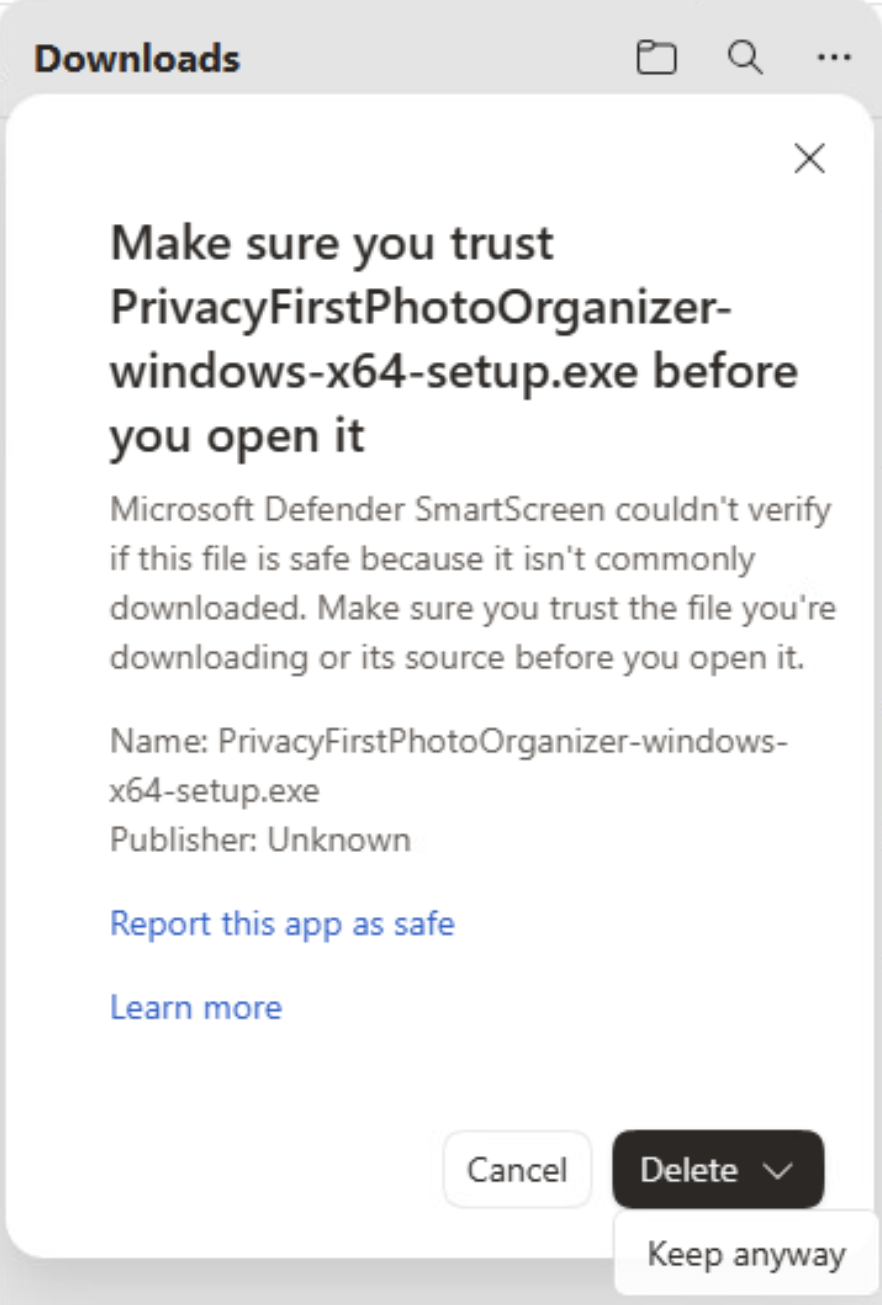
| Windows: first, your browser may hold the download Before the installer ever runs, Microsoft Edge may stop the download and ask you to confirm you trust it. This is the same Microsoft Defender SmartScreen check as the screen further down, run by the browser this time: it has not seen the file downloaded often enough yet. The file is not saved to your Downloads folder until you keep it. Open the arrow beside Delete and choose Keep anyway. If the panel has already closed, press Ctrl+J, then use the … menu next to the file and choose Keep. |
|
Windows · Microsoft Edge, holding the download
The default button is Delete, and Keep anyway is tucked inside its menu. Check the Name line is the installer you downloaded. Publisher: Unknown is expected here as well, for the reason given below. Once you keep it, the file is saved and you run it as usual, and Windows asks a second time. |
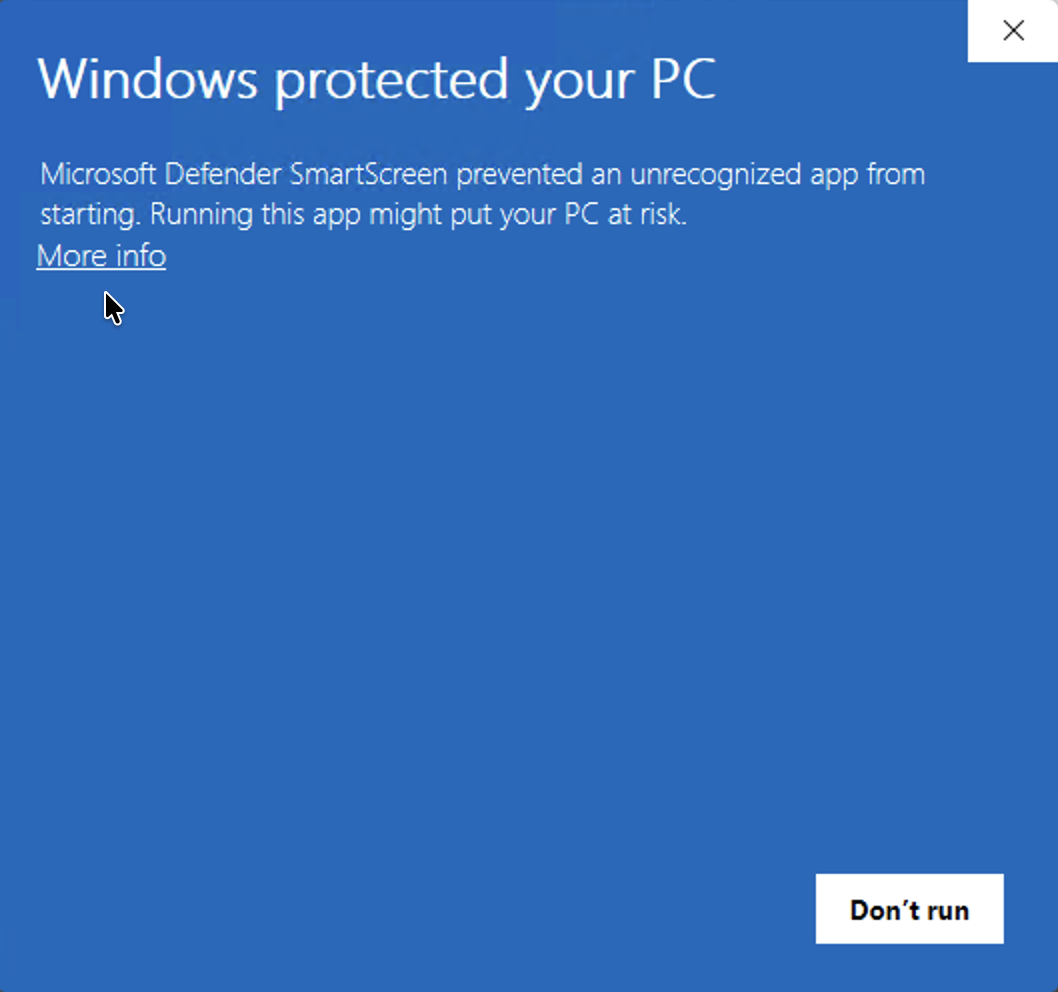
| Windows: the blue "Windows protected your PC" screen This is Microsoft Defender SmartScreen, and on Windows you will meet it — the first time you run the installer, and again for every new version you download. It reports that it has not seen this download often enough to recognise it. It is not a finding about the file, and there is no scan result behind it. Two clicks get past it: More info, then Run anyway. |
|
Windows · SmartScreen, as it first appears
There is no Run button on this screen, and that is the part that stops people. Don't run is the only button offered. The way forward is the small More info link under the message. |
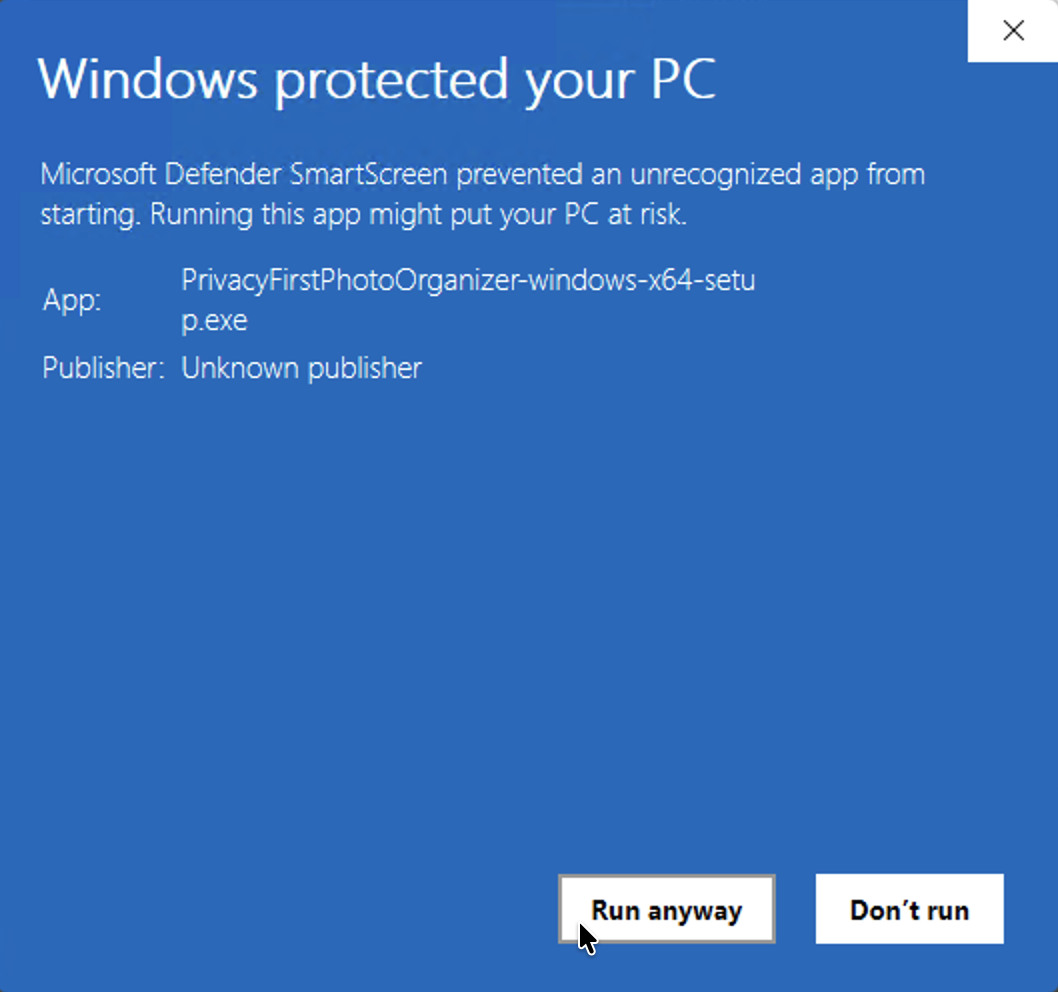
|
Windows · SmartScreen, after More info
Expanding it names the file and adds Run anyway. Check the App line is the installer you downloaded, then press Run anyway. The Publisher line will say Unknown publisher — that is expected, and the next note is why. |
| Why it says "Unknown publisher" The installer is signed, and Windows can see the signature perfectly well. What it cannot do is recognise who made it. Windows prints a publisher's name only when it can follow the signing certificate back to an authority in its own list of trusted ones, and ours is a certificate we issued to ourselves. So the signature does what a signature does — it proves the file has not been altered by anyone since we built it — and it does not introduce us to Microsoft. With nobody vouching for the name, Windows prints none. This is not a gap we are about to close. A purchased certificate would fill in that one line, and it would not remove the screen: SmartScreen's prompt follows how many people have downloaded a file, and every certificate starts at zero regardless of what it cost. The prompt is here to stay, so we would rather explain it than let it look like an oversight. If you would rather check the download yourself than take a dialog's word for it, every file on the download page is published with a SHA-256 checksum and a detached GPG signature beside it. |
| Windows: the first start takes longer Once the app is installed, the first time it opens is slower than every start after it. Windows is checking each of the app's files for the first time before it lets them run. This is expected. Depending on the computer, it can take a minute or a little more. Let it finish rather than starting the app a second time. Later starts skip the check. |
Linux: which of the two downloads to take
The AppImage is the one to take unless you have a reason not
to: one file, its own icon and menu entry, and your library kept in your home
folder. It has to keep it there — an AppImage unpacks itself somewhere new
every time it runs, so anything stored "next to the app" would be gone at the
next launch. The tarball is a folder you unpack anywhere,
including a USB stick, and it keeps your library beside the program,
so the stick carries your projects with it; in exchange it does not register
itself with your desktop, so its icon and menu entry take one command (the
install_desktop_entry.sh script included with it).
|
Where the app keeps its own data
Your photographs stay in the folders you point the app at, and nothing here changes that. But the app also has a folder of its own — the one holding your projects, everything it has worked out about your pictures, your settings and your licence — and it is worth knowing where that is before you need it.
| macOS | Installed from the .dmg, it is
~/Library/Application Support/PrivacyFirst Photo Organizer.
The portable .zip instead keeps a
PrivacyFirst_Photo_Organizer_data folder beside the
app, which is what lets a copy on a USB stick carry your
projects with it. |
| Windows | A PrivacyFirst_Photo_Organizer_data folder beside the
program, whether you ran the installer or unpacked the portable
zip. The installer puts the program in
C:\Users\you\AppData\Local\Programs\PrivacyFirstPhotoOrganizer,
so that is where to look. If the program ever sits somewhere Windows
will not let it write, it uses your user folder instead. |
| Linux | The .AppImage keeps it in your home folder, as
~/PrivacyFirst_Photo_Organizer_data — it has to, because
an AppImage unpacks itself somewhere new on every launch. The portable
.tar.gz keeps it beside the program. |
You never have to work out which of those applies. The
About page names the folder this copy is actually using,
and says whether it is beside the app or in your user account, with an
Open folder… button next to it.
Settings → History log → View logs… has the
same button. Either is the reliable answer on any machine, and it
is the easy way in on macOS in particular, where Finder hides
~/Library unless you hold the Option key while
opening the Go menu.
|
What is in there, and what is not
That one folder holds everything the app has made: each project's database of faces, people, places and captions, its thumbnails, your app-wide settings, your licence file and the history log. Copy it and you have copied all the work you have put in. Installing a new version never touches it. It holds no photographs. Your pictures stay where they already are, covered by whatever already backs them up. Worth knowing before you plan a backup, because the two halves are nothing like the same size — the thumbnails the app keeps for fast browsing can be most of this folder, and they are simply made again as they are needed if they are ever lost. |
| This guide is inside the app The ? icon near the bottom of the left-hand icon bar opens this whole guide as a page of the app — screenshots and all — so it works with no internet, on the machine you are organizing photos on. The User guide button on the About page opens the same page. Inside it, Open online fetches the latest edition from the website, which carries anything published since your version. |
| Optional extras Three features are downloads you start yourself, from Settings → Models & data: object detection (recognises 80 everyday things — dogs, cars, food), photo captions (a local language model that writes a sentence about each photo) and bigger place databases (for smaller towns). None of them is required, and the app never downloads anything without being asked. |
02
Trial and licence
A downloaded build runs as a free trial: every feature works, and you can organize up to 300 photos across all your projects. The trial is read-only — you can see everything the app works out about your photos, but it won't modify them and can't export. That's deliberate: the trial shows you the part you're actually deciding about — whether it finds and names the right people in your photos — while the part that changes your originals waits until you've bought it.
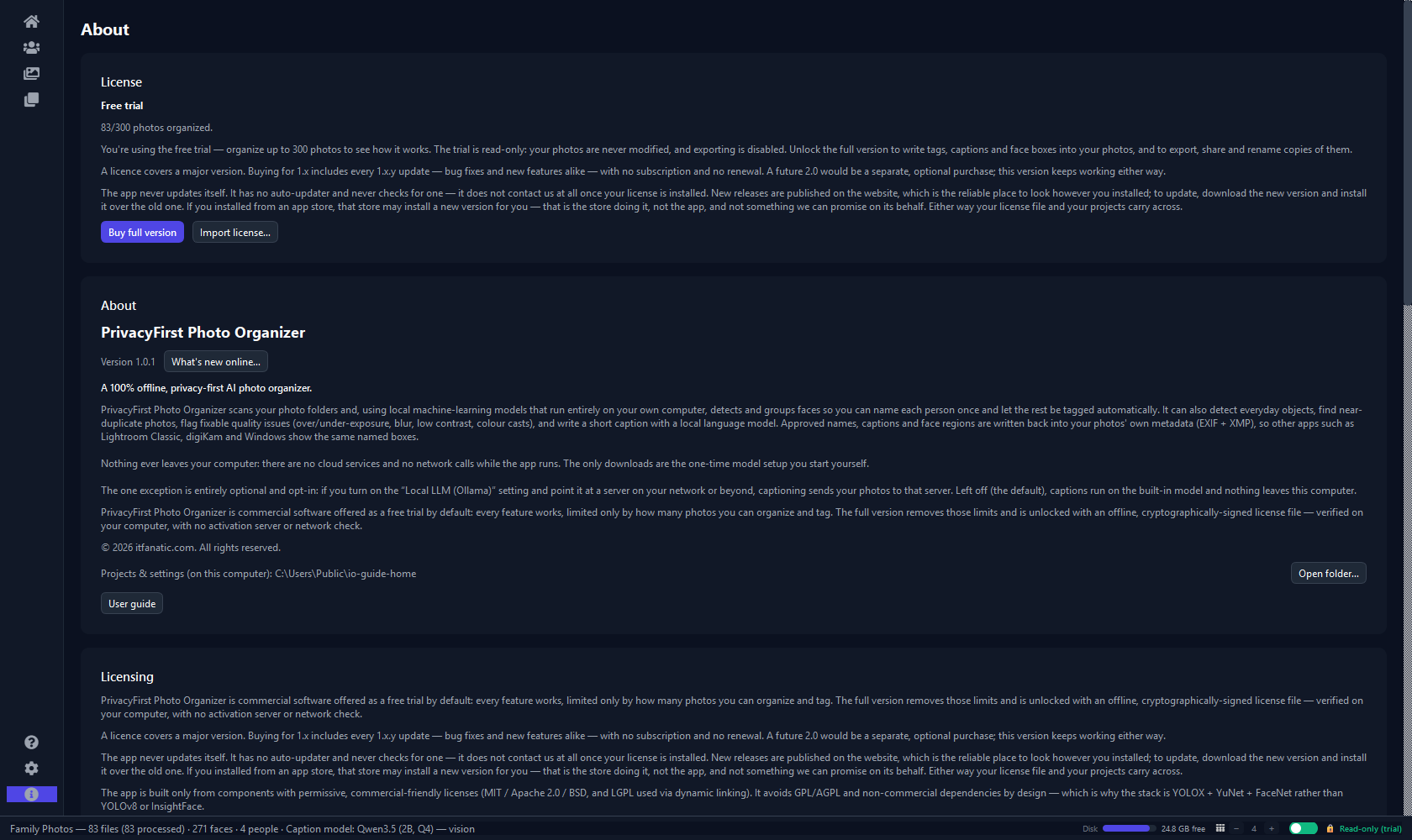
Everything to do with your licence is on the About page, reachable from the i at the bottom of the icon strip — including, if you are still on the trial, how many of the 300 photos you have used.
|
Figure 1 · About
The About page: your licence status, this guide, the full agreement, and an inventory of every open-source component and model the app is built from. Open license texts… at the foot of that inventory opens the folder holding the full text of each one, shipped with the app. |
Unlocking is offline and one-time. Buy a licence on the
website, then press Import license… on the About page
and pick the .lic file you were sent. The app verifies it on your
own computer — no account, no internet, no activation server. The limits
disappear immediately, with no restart.
A licence covers a major version: buying for 1.x includes every 1.x update, bug fixes and new features alike, with no subscription and no renewal. A future 2.0 would be a separate, optional purchase, and this version keeps working either way. If you buy within 60 days before a 2.0 release, we send you the new licence free of charge without you asking.
Which computers your purchase unlocks
The app runs on Windows, macOS and Linux, and where you buy it decides how many of those one purchase covers. That difference is not a rule of ours. It follows from what each route can actually prove on a computer with no internet connection, which is the constraint the whole app is built around.
| Where you bought it | What unlocks it | macOS | Windows | Linux |
|---|---|---|---|---|
| itfanatic.com | A licence file you keep | Yes | Yes | Yes |
| An app store | The account you bought with | That store’s own platform only — a Microsoft Store purchase unlocks Windows, not macOS or Linux. | ||
A licence file travels. It is an ordinary file we send you. It verifies on your own computer with no account and no internet, and nothing inside it is tied to one machine or to one operating system. So a single purchase covers every computer you personally use — the desktop, the laptop, and the Mac as well as the PC. That is what the agreement means by a per-seat licence: one named person, any number of their own computers.
A store purchase does not travel, and cannot. Buying through an app store leaves no file in your hands. The store records the purchase against the account you bought with, and the app unlocks by reading the record that store has already placed on the machine — which is how it stays offline, but also means the record exists only on that store’s own platform. A Microsoft Store purchase therefore unlocks every Windows PC you sign in to with that Microsoft account, so it is not tied to the one computer you bought on. There is simply nothing for the macOS or Linux build to read, and no way for us to put it there.
The two routes mix in one direction only, and only where the store allows it. A licence file from us also unlocks the copy installed from the Microsoft Store, whose own rules permit both routes, so if you buy here and later install that version you stay unlocked. The Mac App Store does not permit it: there, the purchase made in the store is the only thing that unlocks the app. Neither store works the other way round in any case — a store purchase produces no licence file.
| Using both a PC and a Mac? Buy on itfanatic.com rather than through a store — one licence file covers both, where a store purchase covers only that store’s own platform. Worth settling before you buy rather than after, because a store purchase produces no licence file that could be carried across later. |
|
Correct as of 16 September 2026
This describes where the app is sold today, and what each shop’s own rules allow today. Both can change, and the shops’ rules are not ours to set. Which stores we sell through may change; a store may alter what a purchase there covers; and a route that did not exist when this was written may exist by the time you read it. So take this table as correct on the date above rather than for ever, and check itfanatic.com/image-organizer for the current position before you buy — that page is always the up-to-date one. The licence-file route is the part we control, and the part we can say will go on working exactly as described here. |
Updates — how you get them
The app never updates itself, and never checks whether it should. It has no auto-updater and makes no update request, because it makes no network requests at all — that is the same property that lets the whole thing run on a machine that has never been online.
There is one case where a new version can arrive on its own, and it is not the app doing it: if you installed from an app store, that store updates the app for you, unless you have turned that off in its own settings. That is a separate program you already had, working the way it works for everything else you installed through it. The app itself still makes no network request of any kind.
How current that keeps you is the store's business, not ours. A store decides when to roll a release out and you can switch its updating off, so the website below is the route that is always there — and it is where every release is published however you installed.
The consequence is worth stating plainly, because every other program on your computer works the other way: the app will not tell you a new version exists. Silence here means the app is not allowed to ask, not that nothing has been released.
So there are two ways to hear about a release:
- The website — every release is published at itfanatic.com/image-organizer. This is the reliable one; check it when you feel like it. The About page has a What's new online… button beside the version number that opens the releases page in your browser, so you do not have to keep the address. It is an ordinary link: pressing it does not make the app check anything, and not pressing it tells the app nothing either — the app never contacts us whatever you do here.
- Email — we may send a note to the address you bought with. Treat it as a courtesy rather than a guarantee: mail goes astray, and if you have asked us to erase your details we no longer have an address to write to.
Updating is just installing the new version over the old one.
Your licence stays valid for every release in its major version, so there
is nothing to re-enter; your projects, people, names and captions live in
your app-data folder and are untouched by an install. On Windows run the new
installer; on macOS replace the app in Applications; on Linux replace the
.AppImage file, or unpack the new tarball over the old folder. If
a store updates your copy for you, the same is true there — nothing you have
made is touched.
03
The five-minute tour
Four steps take a folder of unsorted photos to a searchable, named library.
- Create the project. On the Dashboard, press + New, give it a name, and add one or more folders of photos. You can add, move or remove folders later without losing any work.
- Press Process New Files. A window lets you choose what to do besides finding faces — leave the defaults and confirm. The app then reads your photos: faces, capture dates, places, quality, colours, duplicates and events. Watch it in the bar at the bottom of the window. You can keep using the app while it runs.
- Name people on the Identify People page. The app has already grouped the faces it thinks belong together; you put a name to each group, then confirm or correct what it suggests. After a few groups, press Classify unassigned and it starts tagging the rest for you.
- Use your library on the Organizer page — browse by folder, by person, or by trip; filter by anything the app has worked out; tag photos with your own words; and press Write All New Data when you want the names, captions and tags saved into the photo files themselves.
All four of those start on the Dashboard, and it is the page you come back to whenever there are new photos to take in. Everything on it falls into two columns: the pipeline down the left, roughly in the order you use it, and the actions that touch the whole project on the right.
|
Figure 2 · Dashboard
The Dashboard, with one project open and already processed. The panel on the left lists your projects; the strip of figures across the top is the open one in a glance — how many files, how many are processed, how many faces were found, how many people you have named. Under it the two columns of buttons, and their colours are doing the talking: the amber Write All New Data means there is something worked out that has not been saved into your photos yet, and the red ones are the two that destroy something and always ask first. |
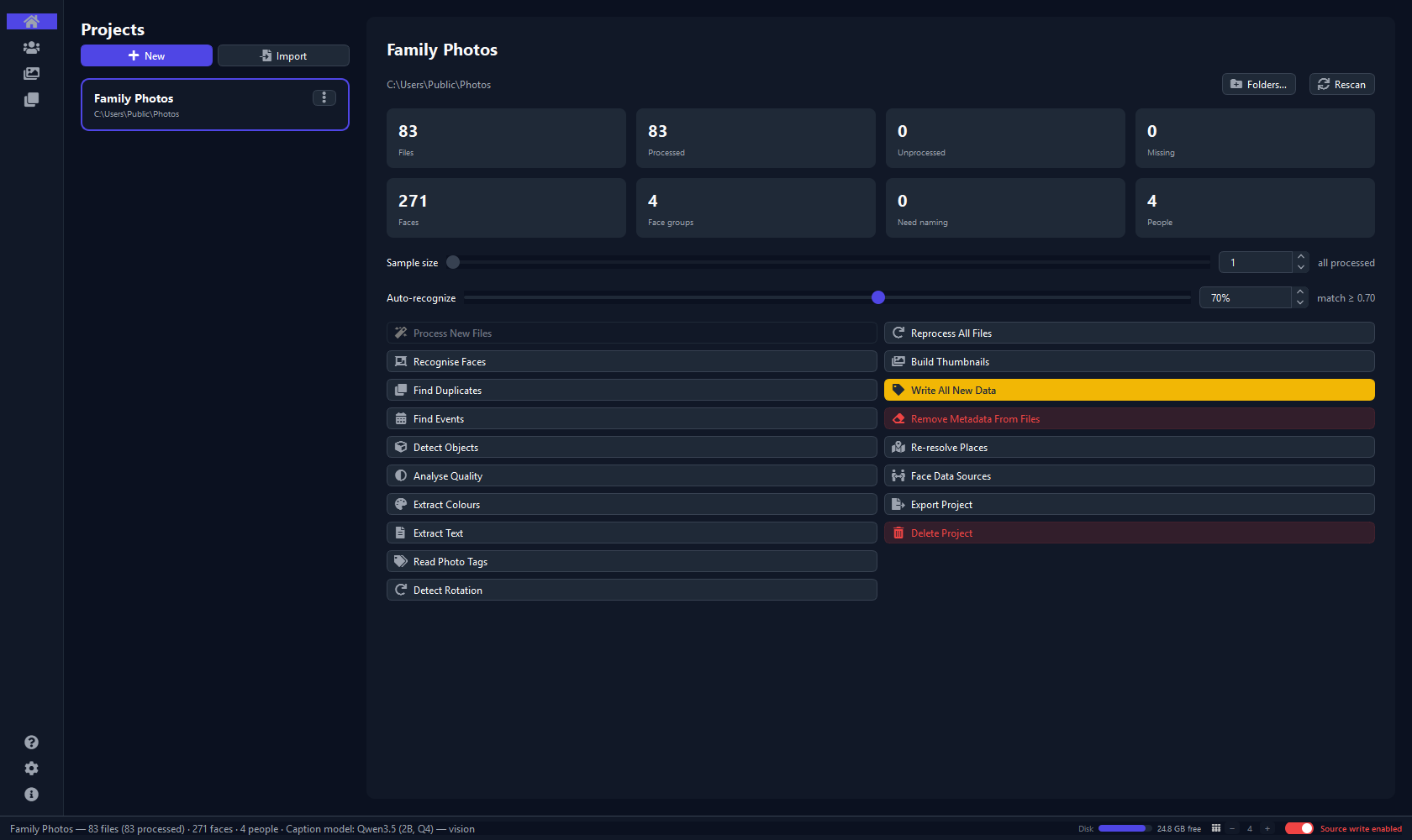
You do not have to wait for one step to finish before starting the next. The bar along the bottom of the window keeps a live count and an estimate while a pass runs, and every page stays usable meanwhile — naming people while the rest of the library is still being read is the normal way to work through a big archive.
04
How it works
Three things explain nearly every question people ask about this app: where your photos live, where the work happens, and what a button's colour is telling you.
Your photos stay where they are
A project doesn't copy or import your photos. It points at your existing folders and keeps everything it learns — faces, people, dates, places, captions — in its own small database, separate from your pictures. Delete a project and your photos are untouched.
Nothing is ever written into a photo file until you explicitly ask, with Write All New Data or one of the correction actions. Until then, every discovery lives in the project alone.
Nothing leaves your computer
All the recognition runs on your own processor, against models that were installed with the app. It makes no difference where the photos themselves sit — an internal disk, a USB drive, a network share you have mounted: they are read from where they are, and what the app learns about them is kept in the project's own database on this machine.
There are no cloud services behind any of it, no account, no telemetry, and no network call while you use it. The only downloads are the optional extras you start yourself — a bigger place database, an object model, a caption model — and the one setting that can send a photo elsewhere is described in Settings, is off until you turn it on, and asks for an explicit confirmation before the first photo goes anywhere.
The button colours
Across the app, a button's fill tells you whether there is work waiting:
| Colour | Means |
|---|---|
| Amber | There is a backlog. Press this — the tooltip says how much is waiting. |
| Green | You already ran this and there is nothing left to do. |
| Plain | Nothing waiting, and it hasn't been run this session. Safe to press anyway. |
| Red | Destructive. It always asks first and tells you exactly what it will do. |
The six pages
| Page | What it's for |
|---|---|
| Dashboard | Projects, folders, and every processing action. |
| Identify People | Name the face groups and teach the recogniser. |
| Organizer | Browse, filter and act on your photos. |
| Duplicates | Review near-duplicate sets and clear them out. |
| Settings | App-wide preferences and optional downloads. |
| About | Version, licence, this guide, and the full component inventory. |
The icons down the left edge switch between them. At the bottom of that strip sit ? (this guide), ⚙ (Settings) and i (About).
05
Dashboard — projects and processing
A project is a named set of photo folders and everything the app has worked out about them. The Dashboard is where you make one, point it at more folders, and run the passes that fill it in.
Projects
- New — name it and pick any number of photo folders.
- Folders… — add another folder later, relocate one that has moved (the pencil — every face and name is kept), or remove one. Removal shows exactly how many files, faces and people it would forget, and never touches the photos on disk.
- The ⋮ menu on each project card — Rename, Export, Delete. Deleting a project removes only its own data; your photos are never deleted, and the confirmation says so.
- Export / Import — writes the whole project to a single
.ioprojfile: people, assignments, captions and the trained recogniser, and optionally the thumbnails and even the original photos. Use it to move a library to another computer or to keep a backup. - Rescan — picks up files you have added, changed, renamed or deleted in the folders. Fast, because it only reads file names and dates. The app does this for you each time you open a project, so the counts always describe the photos it can reach right now; the button is there for when you have changed something while the project was open.
| If a folder has moved — or isn't there Opening a project whose folders can't be found lists them with a Locate… button each. Point it at the new location and everything — people, names, captions — carries over. A folder you can't point anywhere yet, because the drive it lives on is elsewhere, is shown in red on the project's card, and its photos are counted as Missing. Nothing has been lost: everything the app knows about them is kept, and they come back by themselves the next time you open the project with the folder in place. |
| Photos that went away while the folder stayed The same count catches the quieter version: the folder is still there and still opens, but photos have been deleted, moved or tidied away inside it. Nothing about the project looks wrong in that case — the path is fine, the card is fine — so the Missing count is the only thing that says otherwise, and it is shown in amber whenever it is not zero. Put the photos back where they were and the next time you open the project they are simply there again, with everything the app knew about them. |
The processing buttons
The left column runs roughly top to bottom. In practice you press Process New Files and it chains the rest for you; the individual buttons are there for catching up afterwards.
| Button | What it does |
|---|---|
| Process New Files | The main one. Reads every photo not yet analysed: faces, capture date, GPS and place, quality, colours, orientation, thumbnails — plus objects and text if you have those switched on. Opens a checklist first so you can skip the slow extras for this run. |
| Recognise Faces | Groups the detected faces so you can name each group. Runs automatically after processing. |
| Find Duplicates | Finds near-identical photos — re-saves, burst frames, edited copies — and groups them for the Duplicates page. |
| Find Events | Groups photos into trips and occasions from their dates and locations. |
| Detect Objects | Tags 80 everyday object classes. Needs the optional object model. |
| Analyse Quality | Flags overexposed, underexposed, blurry, low-contrast and colour-cast photos. |
| Extract Colours | Reads each photo's dominant colours, so you can filter by them. |
| Extract Text | macOS and Windows only. Reads the text in receipts, whiteboards and documents using your operating system's own text recognition — macOS Vision or Windows OCR, both already built into your system — making them searchable. The slowest pass, so it is off by default. On Linux there is no such system component, so the button is greyed out with the reason in its tooltip and no text is ever read. |
| Read Photo Tags | Imports the keywords, captions and named face boxes your photos already carried from another program. |
| Detect Rotation | Finds sideways and upside-down scans. |
You rarely press more than the first of those. Process New Files chains the rest for you, and the individual buttons are there for catching up afterwards — when you switch a pass on that was off during the first run, or install a model you did not have then. Each one goes green when there is nothing left for it to do.
The right column acts on the whole project instead:
| Reprocess All Files | Opens a checklist of everything the app has worked out, so you can rebuild exactly what you choose and keep the rest. See below. |
| Write All New Data | Saves people, captions and face boxes into your photo files. Amber whenever something is waiting. |
| Remove Metadata From Files | Strips only what this app wrote back out again. |
| Re-resolve Places | Re-derives place names from stored coordinates — useful after installing a bigger place database. |
| Face Data Sources | Lets this project recognise people you have already named in another project, so a family named once need not be named again. The other project is only read; nothing is copied between them. |
| Export / Delete Project | The same as the project card's ⋮ menu. |
How long does this take?
It depends on your computer and which optional passes you leave switched on — the progress bar along the bottom shows a live estimate once a run is under way. As a rough guide, from testing on real machines ranging from a six-year-old laptop to a recent Apple Silicon Mac: plain face detection runs at roughly 50–70 photos a minute; the everyday default settings (orientation correction, quality and colour analysis, object detection if installed) bring that to roughly 35–45 a minute; and switching on every optional extra, including the slow on-device text recognition, brings it to roughly 20–35 a minute. A thousand photos at the default settings is typically 20–30 minutes.
Everything after that first read stays fast, even on a very large library. Grouping a fresh batch of newly-detected faces takes seconds. The one thing that genuinely takes minutes is the first Recognise Faces run against a big backlog of faces nobody has reviewed yet — tested on a real 32,000-photo library with about 21,000 such faces, that took three to five minutes depending on the machine. Once some people are named, recognising them in new photos — even against a library that size — takes well under a second. Browsing, filtering and opening the project stay quick regardless of how large the library grows.
Reprocess All Files — the reset checklist
This asks what to reset before it runs anything, in two groups. Read back from your photos (faces, quality, colours, dates, places, duplicates, thumbnails…) is ticked by default: resetting it costs time and loses nothing. Data the app built up (people and their names, captions, locations you set by hand, tags you added, events) starts unticked, because nothing there comes back on its own — an amber line names anything you tick that would be lost for good.
Anything left unticked is kept exactly as it is. So the default does what you would expect — re-detect the faces, keep who everyone is — and "just redo the quality analysis" is now a single tick.
| Start over completely The Start from scratch box at the top ticks everything and rebuilds the project from your photos alone. Locked people are still kept, and your photo files are still never modified. |
The bar along the bottom
Every long job appears here with a progress bar and a time estimate, and most can be stopped mid-way with the ⏹ button on their row — stopping is safe, and anything already done is kept. The same bar shows free disk space, a pictures per line control for the photo grids (1 to 15 — more per line means smaller pictures), and the read-only switch.
06
Identify People — naming and confirming faces
This is the part that saves you the most time. The app has already sorted the faces into groups; your job is to put a name to each one, and then let it do the rest.
A group is the app's guess that a set of faces belongs to one person. It is only a guess, so groups start out unnamed and a little untidy: one person can turn up as two groups, and a group can hold a face or two that is somebody else. Naming one is what turns that guess into something the app can learn from, and every face you confirm afterwards makes the next guess better.
|
Figure 3 · Identify People
Reviewing a person who has already been named. The list on the left holds every group with its face count, named people first, above the two pools nothing has been done with yet. The middle is this group's faces — one tile per detection, cropped out of the photo it came from, so somebody appears once for every picture they are in, and ordered so look-alikes sit side by side and the odd one out stands away from them. A green tick is a face you have confirmed — all of Emma's, here; a face the app only guessed wears a thin dashed amber outline until you confirm it. The small numbered badges are not about the face at all: they mark a photo that belongs to a set of near-duplicates. On the right, the inspector shows the whole photo the selected face was cut from. |
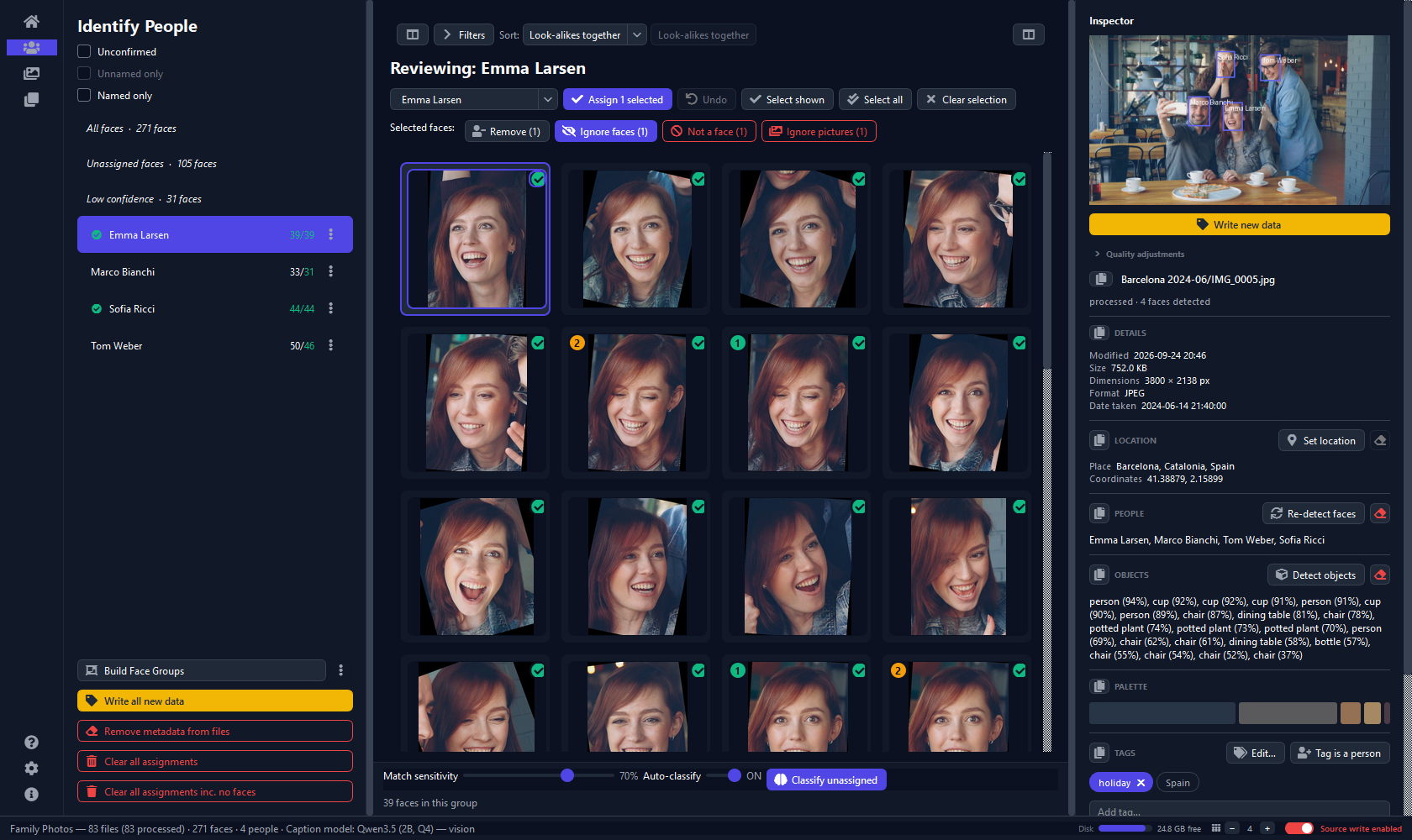
Read the tiles rather than the count. A group that is genuinely one person looks monotonous — the same face over and over at different angles and in different light. If you can see two people in the grid, it has merged two, and the fix is to name it after whoever is in the majority and hand the rest back.
Naming a group
- Click a group in the left-hand list. Its faces fill the middle.
- Glance over them. If a face doesn't belong, click it to tick it and press Remove.
- Type the name in Who is this? and press Assign. Typing a name that already exists merges the group into that person.
- Press Classify unassigned once you have named a few people — the app trains on your answers and tags the rest.
With nothing ticked, Assign, Ignore faces, Not a face and Ignore pictures act on the whole group — each says All so you can see that is what it will do — which is what makes this fast. Tick individual faces only when you want to act on some of them. Remove is the exception and stays greyed until you do: taking every face out of a person is what Clear all assignments is for, and would be a surprising thing to do by pressing a button meant for one stray face.
Clearing a photo full of stray boxes
Some photos come back with far more boxes than people: a crowd shot where one person matters and the detector found eleven strangers, or a scan whose texture set it off six times. Naming the face you care about and then dealing with the rest one at a time is the slow way round.
Instead, right-click the photo — on the inspector's preview, in the full-size viewer, or on any tile in the Organizer or Identify People — and reach for Ignore all N unnamed faces or Mark all N unnamed faces as not a face. On the grids they sit in an Unnamed faces submenu; on a photo you are looking at, they are at the foot of the face menu, and right-clicking clear of every box offers them on their own.
Anyone you have already named keeps their face — that is what makes this safe to use on a whole selection — and so does anyone in a locked group. The count is in the label, so you always know what the click will do, and nothing is destroyed: the Ignored and Not a face views bring them all back in one action.
The pile of things that are not faces
Face detection is deliberately generous — it would rather offer you a hand or a patch of patterned fabric than miss a real face in the background. Those low-scoring detections are kept out of the automatic grouping (otherwise they chain unrelated people together), so they sit quietly in the unassigned pool and never form a group of their own.
Low confidence, just under Unassigned faces in the left-hand list, is where you find them. Select it, leave everything unticked, and press Not a face (All) — the whole pile goes in one press. Anything that turns out to be a real face you name exactly as anywhere else.
Nothing here is permanent. These are ordinary unassigned faces: Classify unassigned can still recognise one and hand it to the right person, and lowering the bar under Settings → Face recognition puts them straight back into normal grouping. The row only appears when there is something in it.
The other buttons
Everything else on this page is in the row above the grid. Most of it exists for the same reason: a face the detector found is not always a face you want, and there needs to be somewhere for it to go that is not deletion.
| Assign | Names the group. On a person you have already named, pressing it with their name still in the box approves the recogniser's guesses instead — confirmed faces are what it learns from, so this is what makes it better. Changing the name is a rename and approves nothing. |
| Undo | Reverts the last thing you did — including the automatic tagging that followed it. Its tooltip names what it will undo. |
| Remove | Takes the ticked faces out of this person and returns them to the unassigned pool — for the one face in the group that belongs to somebody else. The only button here that needs a selection. |
| Ignore faces | Hides a face from recognition without deleting it. Good for strangers in the background. Recover them from the Ignored view. |
| Not a face | For false detections — a pattern in the wallpaper, a face on a poster. Also recoverable. |
| Ignore pictures | The same verb one scope wider: it ignores every unnamed face in the photos the ticked faces came from. The crowd shot where you want one person and the detector found eleven strangers. Anyone already named keeps their face. |
| Select shown | Ticks the faces on screen. The buttons then say how many they will act on. |
| Select all | Targets every face in the group, including pages you have not loaded. The buttons say All. |
| Clear selection | Unticks everything. |
| Match sensitivity | How sure the recogniser must be before it tags a face. Higher means fewer, safer guesses. It starts at 70%, which is a good place to leave it. |
| Auto-classify | On by default: re-runs the recogniser after each name you assign, so it improves as you work. |
Working through a big library
- The two boxes above the group list narrow it: Unconfirmed leaves only groups with review work left (and is remembered between launches, so you can stop and resume), and Unnamed only leaves just the ones nobody has named.
- Pick a person, then turn on Unconfirmed faces in the filter panel — the grid then holds exactly their remaining guesses, so Select shown → Assign works through them without touching what you have already checked.
- Large groups load 200 faces at a time; Show more faces adds the next page without losing your ticks or your place. It turns amber whenever there is another page behind it, so a big group never looks like a small one.
- While a group's pictures are loading the action buttons are greyed and the line above the grid reads Loading faces…, so you can never act on a group before you can see it. Picking a different group is always allowed.
- After each action you stay exactly where you were. The page only moves you on when a group is genuinely finished.
Locking a person
A person's ⋮ menu has Lock. A locked person is frozen completely: no face can be added to or removed from them, by you or by the recogniser, and their photos are skipped by bulk captioning, metadata writes, re-detection and folder removal. Use it once someone is finished and you don't want them disturbed by later runs. Unlock lifts it.
07
Organizer — browsing your library
Once the faces have names, this is where you actually use the library. The page is three columns wide and each one answers a different question: which photos, which of those, and what about this one.
|
Figure 4 · Organizer
The Organizer, with one photo selected. On the left, three stacked lists — folders, people, events — and picking anything in any of them sets what the grid shows. The grid itself is the middle: the small pill on each tile is the file's format, and the badges in its corners flag a near-duplicate, a photo whose faces are all confirmed, or one nothing has looked at yet. The right-hand inspector is everything the app knows about whichever photo you clicked last. Drag the dividers between them — the widths you choose are remembered. |
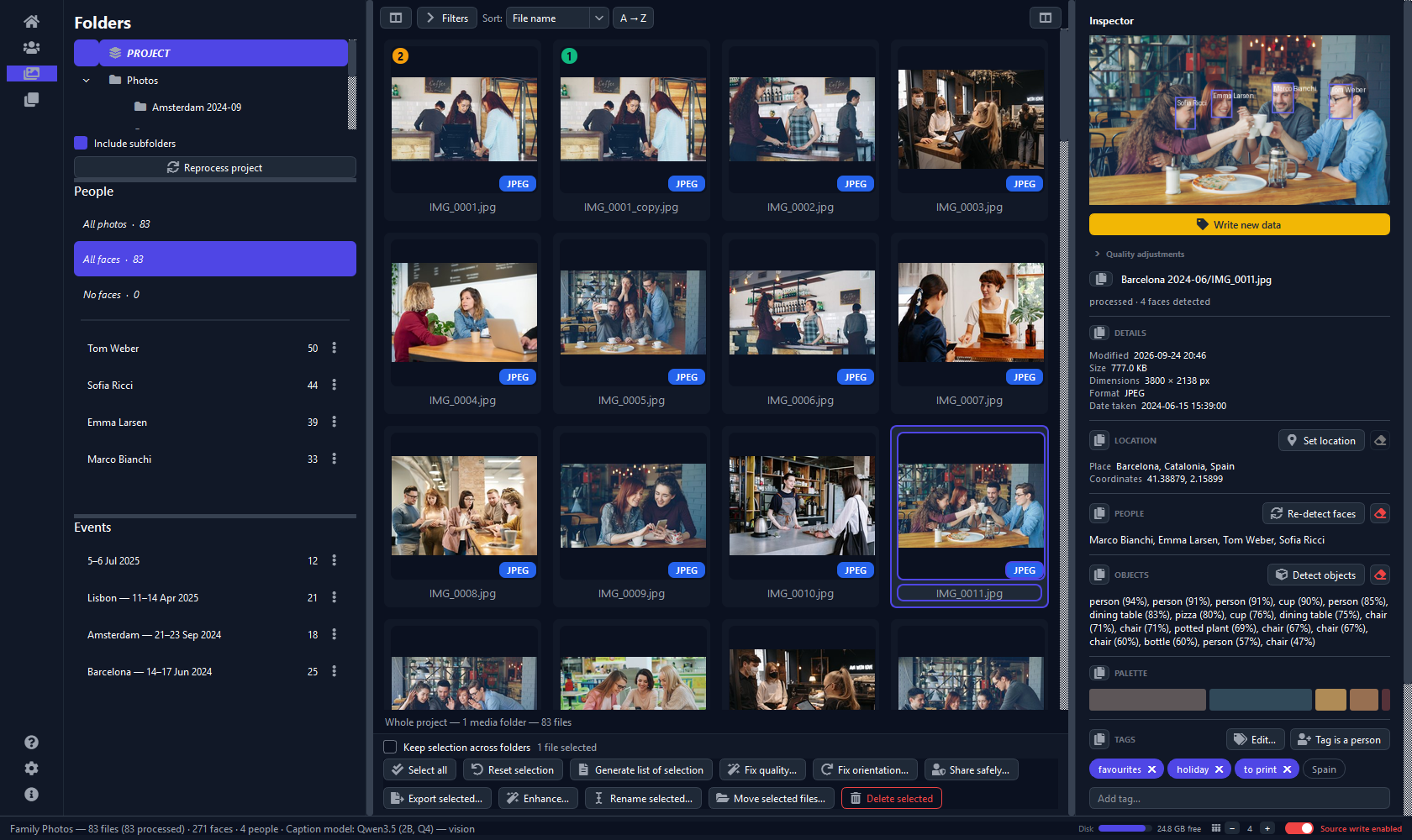
Left — three ways to navigate
- Folders, headed by PROJECT — every photo in the project at once, whichever folder it lives in. That's where a project opens, and it's what makes whole-library jobs one click: PROJECT → Select all → any action.
- People — each named person, plus four whole-library views at the top: All photos, All faces, No faces and Ignored. No faces is how you reach landscapes, documents and scans, which no person-based view can show.
- Events — the trips and occasions the app detected, newest first. See Events & places.
Middle — the photo grid
Clicking a photo previews it on the right and adds it to your selection; clicking again removes it. Drag a box across empty space to sweep in several at once. Double-click (or Space) opens the full-size viewer; right-click opens a per-photo menu. Clear the selection with Reset selection or a click on empty space.
Select all picks every photo in the current listing — not just the ones on screen — so if the line under the grid reads "showing 500 of 3,812", all 3,812 are selected. Turn on Keep selection across folders to gather photos from several folders before acting on them.
The badges on each photo
| Top-left 1 / 2 | This photo is in a near-duplicate group — 1 on the group's main copy, 2 on the others. |
| Top-right ✓ | Every face in it has been confirmed. |
| Bottom-left ⚠ | Not analysed yet. An empty face list here means "still waiting", not "no faces found". It clears itself once processing reaches the photo. |
| Bottom-right pill | The file type — JPEG, PNG, HEIC, NEF… Colour-coded, with grey meaning the app can't edit that format in place. |
Right — the inspector
Everything the app knows about the selected photo. See below.
08
Finding photos
The Filters button above the grid opens the filter panel. It works on the Organizer, on Identify People and on Duplicates, and it is the fastest way to find anything.
|
Figure 5 · Organizer · filters
The filter panel, expanded over the grid. Each dropdown is one category and holds the values this project actually has — a category with nothing to match greys itself out rather than offering you an empty list. Tick as many values across as many categories as you like and press Apply filters; what you applied then sits above the grid as chips you can drop one at a time. The Match slider beside them decides whether a photo has to satisfy all of it or any of it. |
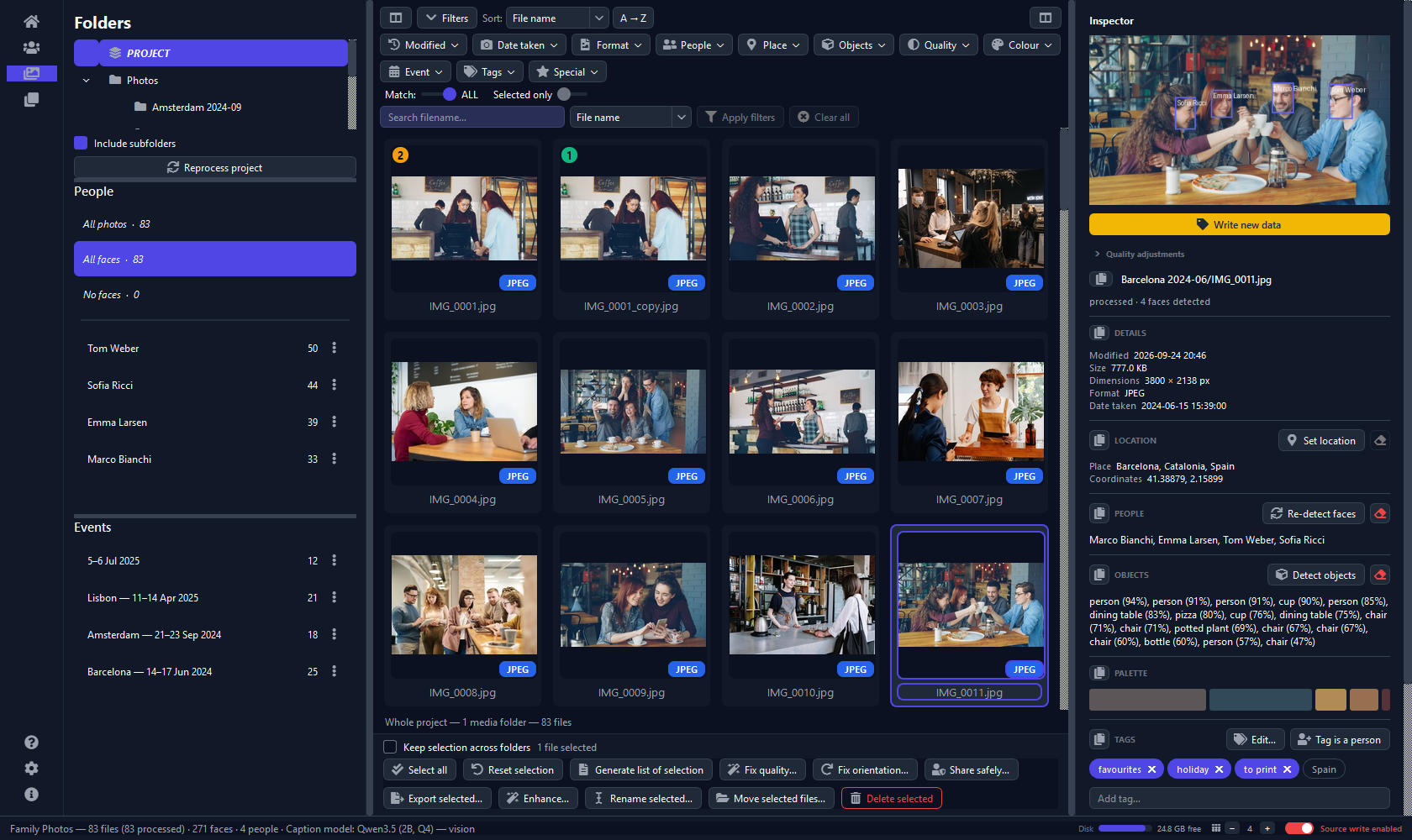
What you can filter by
Every category below is built from what the app found in your library, not from a fixed list, so it shows the years you actually have, the people you actually named and the places you actually went.
| Date taken | By year, or drill into a month. |
| Modified | The same, for the file's own date. |
| Format | JPEG, PNG, HEIC, NEF, CR2… |
| People | The people you have named. |
| Place | Where the photo was taken, grouped country → city. |
| Objects | What's in the picture — dog, car, pizza, laptop. Needs the object model. |
| Quality | Overexposed, underexposed, blurry, low contrast, colour cast. |
| Colour | The dominant colours, each shown as a swatch: nine hues plus black/grey/white, and the tones dark, light, muted and vivid. |
| Tags | The tags you added yourself (see Tagging your photos) and the keywords your photos arrived carrying from another program, as one list. A long list has a search box at the top of the menu. |
| Event | The detected trips and occasions, grouped by year. |
| Special | Yes/no filters — see below. |
Tags is the one category you fill in yourself: besides the keywords your photos arrived with, it lists the words you put on them. How to add them is the next section.
Sorting the grid
On the Organizer, a Sort control sits beside the Filters button — always visible, and with no Apply step, because unlike a filter it takes effect the moment you use it. Sort by File name, Date taken, File date, File size, People in photo or Processed. Date taken and File date are separate on purpose: a scan has a 2024 file date and a 1975 capture date.
Identify People has the same control, sorting the grid of faces by the photo each one came from. It adds two orders of its own: Look-alikes together, which is what that page has always done and is still the default — faces that resemble each other sit side by side, so the odd one out stands out — and Reviewed, which puts the faces still waiting for your approval first. The two pages remember their orders separately.
The button beside it says what it will do — A → Z, Newest first, Largest first — and one click reverses it. Photos with nothing to compare (an undated scan, when sorting by date taken) sort last either way, so reversing never fills the top of the grid with the photos that have the least to say. The order covers the whole listing rather than just the page on screen, Select all follows it, and your choice is remembered between sessions.
Match: ALL or ANY
Under ALL (the default) a photo must match everything you picked, including every value inside People, Objects, Quality, Colour and Tags. That is what makes "moody blue and teal" a single query: tick Blue, Teal, Dark and Muted under Match: ALL. Under ANY, matching one of them is enough.
The Special filters
| Unassigned | Photos where no face has been named yet. |
| Auto-assigned | Photos holding a recogniser guess you haven't confirmed. |
| Any unconfirmed | Photos with at least one face still awaiting confirmation. Pair it with a person to find the shots where they still need confirming. |
| All unconfirmed | Photos you haven't looked at at all. |
| No face | Landscapes, documents, scans. |
| Group photos | More than three detected faces — the crowd shots. |
| Few faces | At least one face, but no more than three — portraits and small groups. Not the same as "not a group photo": photos of nobody are under No face, so the three together split your library into nobody, a few people, and crowds. |
| Duplicates | Photos in a near-duplicate group — whole groups, so you can compare them. |
| Best shot only | The opposite view: one photo per duplicate set plus everything with no duplicates, so a library full of bursts reads as one picture per subject. |
| Rotated | Sideways or upside-down photos. Pair with Fix orientation…. |
| Unprocessed / Processed | What the app has and hasn't analysed yet. |
| Came already tagged | Photos that arrived with their own keywords or caption. |
| Untagged | Photos with no tags at all — your to-do list when tagging a library. |
Searching by name and by text
The search box matches part of a file name. The dropdown beside it switches it to search the text inside your photos instead — the words on a receipt, a whiteboard or a scanned letter — or both at once. Accents and capitals don't matter: searching Kasespatzle finds Käsespätzle. Text search needs Extract Text to have run. It is available on macOS and Windows only.
| Two small rules worth knowing Sliders (Match, Selected only, Unconfirmed faces) apply the moment you move them. The dropdowns and the search box wait for Apply filters, so a half-finished selection never triggers a search. A category greys out when this project has nothing it could match. |
09
Tagging your photos
Faces, places and dates the app works out for itself. Tags are the words only you know — receipt, Anna's wedding, to print — and they make a photo findable by what it means to you rather than by what is in it.
Three ways to tag
All three work on the same tags. Which one to reach for depends on how many photos you have in front of you.
| Where | Best for | How |
|---|---|---|
| The inspector | One photo | Type into Add tag… in its Tags section and press Enter. It suggests the tags the project already has as you type. Each of your tags has a ✕ that takes it off again. |
| Right-click ▸ Tags ▸ | A selection, one tag at a time | Your twelve most-used tags, one click each. A tick means every selected photo already has that tag: clicking an unticked tag puts it on all of them, clicking a ticked one takes it off all of them. |
| The tag editor | A selection and several tags at once, and tidying up | Right-click ▸ Tags ▸ Edit tags…, or Edit… beside the inspector's Tags title. See below. |
The tag editor
|
Figure 6 · Tag editor
The tag editor, over four photos. Each row's checkbox describes the selection: holiday is ticked because all four have it, favourites and to print are half-ticked (a dash) because only some do, and share with family is clear. The right-hand column counts each tag across the whole project; Spain says from files instead, because it is a keyword the photos arrived with rather than one of your tags. |
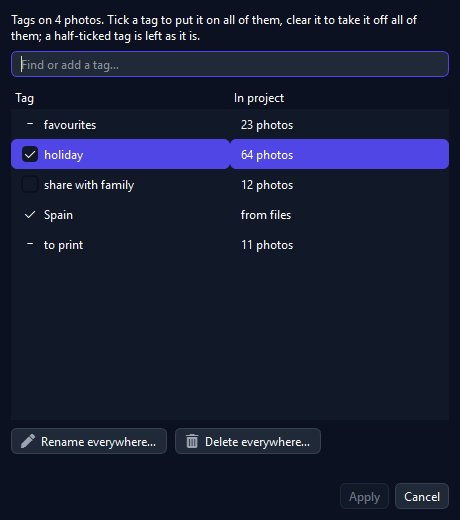
Tick a tag to put it on every selected photo, clear it to take it off every one, and leave a half-ticked tag alone to leave each photo as it is. Type into Find or add a tag… to narrow a long list; Enter ticks the matching tag, or adds a new one when there is none.
Two buttons work on the highlighted tag across the whole project rather than the selection. Rename everywhere… fixes a typo or a naming change on every photo at once — and renaming a tag onto one that already exists merges the two. Delete everywhere… takes a tag off every photo that has it. Nothing at all changes until you press Apply, so Cancel really does cancel.
Keywords the selected photos arrived with are in the list too, so the ticks always tell the truth about the selection — but only your own tags can be renamed or deleted. The next section explains why.
Your tags, and the ones your photos arrived with
Photos organised in Lightroom, digiKam, Picasa or Windows often arrive already carrying keywords, and the app reads them in as it processes. Everywhere you use tags, the two kinds are one list: the Tags filter offers both, and a photo matches a tag whichever way it got it. Where you edit them, they differ. In the inspector your own tags are filled chips with a ✕; the keywords a photo arrived with are outlined and have no ✕, because the app did not write them — removing one here would simply come back the next time the photo is read. Change those in the program that wrote them.
A keyword from another program can be anything — a place, an event, or a person. When one of them is really somebody's name, Tag is a person in the inspector tells the app so: pick the keyword, give the person a better name if you like (grandma → Grandma Rose), and every photo carrying it that holds exactly one unnamed face gets that face named. Photos with several unnamed faces are left alone, because the keyword does not say which face it means.
Finding them again
Open the filter panel and pick from the Tags dropdown — it has a search box at the top for a long list. Several tags under Match: ALL finds the photos carrying all of them: holiday and to print is this year's album. Two of the Special filters help while you work through a library: Untagged shows the photos with no tags at all, and Came already tagged the ones that arrived with keywords of their own.
Two rules a tag follows
- Capitals don't matter. Typing beach when the project already has Beach uses Beach, so the list never ends up holding both.
- A tag cannot contain a semicolon. Windows and other programs use ; to separate keywords, so a tag holding one would come back from the photo as two.
Getting them into the photo files
Tags are kept in the project as you add them, which is why tagging works even with your originals locked. The next Write new data (or Write All New Data on the Dashboard) saves them into the photos as ordinary keywords, beside the people's names — so Lightroom, digiKam and Windows Explorer show them too. See Writing back to your photos for what else goes in. A keyword the photo already had is left exactly as it was, so removing your tag later can never delete the photo's own keyword.
What happens to tags when…
| You move or rename photos outside the app | Their tags follow them, the same way their faces and names do. |
| You reset photos to unprocessed | The tags are kept. They are yours, not something the app worked out, so nothing could put them back. |
| A photo shows a locked person | Its tags can't be changed until you unlock that person. The photo is skipped, and the status line counts how many were. |
| You want to remove them in bulk | Right-click ▸ Remove data… ▸ Tags you added for a selection, or the same item in Reprocess All Files' checklist for the whole project. |
| You move the project to another computer | Exported and imported with everything else. |
| The photo is a camera RAW file | Tagged and found like any other photo, but the tags stay in the project — nothing is ever written into a RAW. |
10
The inspector and the viewer
Two ways of looking at one photo: the panel beside the grid, which is also where you correct what the app got wrong, and the full-size view, which is where you check whether it got it wrong at all.
The inspector
The right-hand panel on the Organizer, Identify People and Duplicates pages shows everything about the selected photo — and it is where you edit a single photo's information.
|
Figure 7 · Inspector
The inspector, top to bottom. A preview with a box round every detected face, named where the app knows who it is — right-click a box to name, confirm or ignore that one face without leaving the photo. Below it, one section per kind of information: the file's own details, where it was taken, who is in it, what objects were detected, its dominant colours, any text read out of it, its tags, and its caption. Sections with nothing in them stay hidden — this photo has no text in it, so there is no text section — and the panel is only ever as long as the photo deserves. |
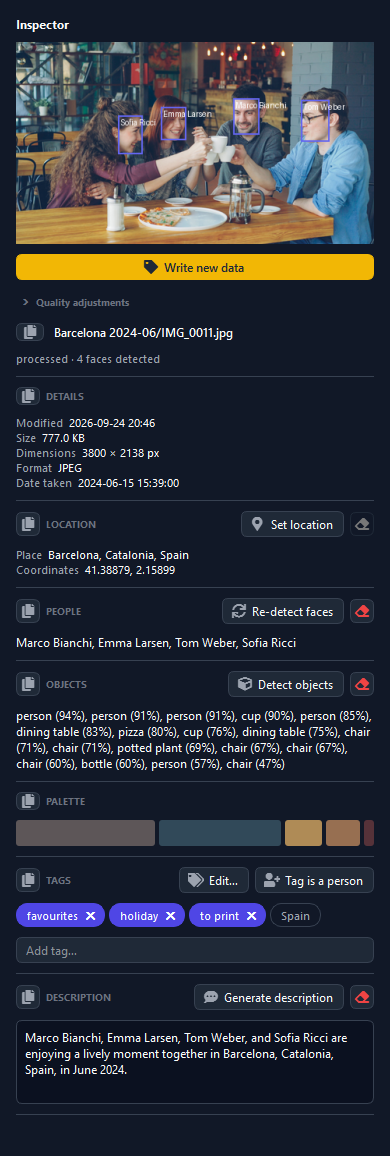
| Write new data | Saves this photo's people, caption and face boxes into the file. Amber when something is waiting. |
| Quality adjustments | Four sliders — brightness, contrast, saturation, sharpness — plus Auto adjust, which reads the photo and moves the sliders to a suggested correction you can then tweak. Saves as a copy by default. |
| Details | Size, dimensions, format, capture date. |
| Location | Place and coordinates, with Set location… to set them by hand — by place name, by coordinates, or both. |
| People | Who is in the photo, with Re-detect faces to run detection again on this one photo. |
| Objects | What was detected, with confidences. |
| Palette | The dominant colours, sized by how much of the frame each covers. |
| Text in photo | What the text recognition read. Hidden when there is none — and always on Linux, which has no text recognition. |
| Tags | Your own tags, each with a ✕ to remove it, beside the keywords the photo arrived with. Type into Add tag… and press Enter to add one; Edit… opens the tag editor. Tag is a person turns an arrived keyword into a named person. See Tagging your photos. |
| Description | The caption — type your own, or press Generate description to have the local language model write one. |
The small eraser beside a section clears that information, both in the project and in the photo file.
The full-size viewer
|
Figure 8 · Viewer
The full-size viewer, with four people already named. The boxes and their name plates are drawn over the picture, which is the quickest way to check a whole photo at once: a plate with the wrong name on it is obvious here in a way it is not in a grid of cropped tiles. Right-clicking a box does everything the inspector's does, and the arrow keys walk through the rest of the current listing without leaving the viewer. |
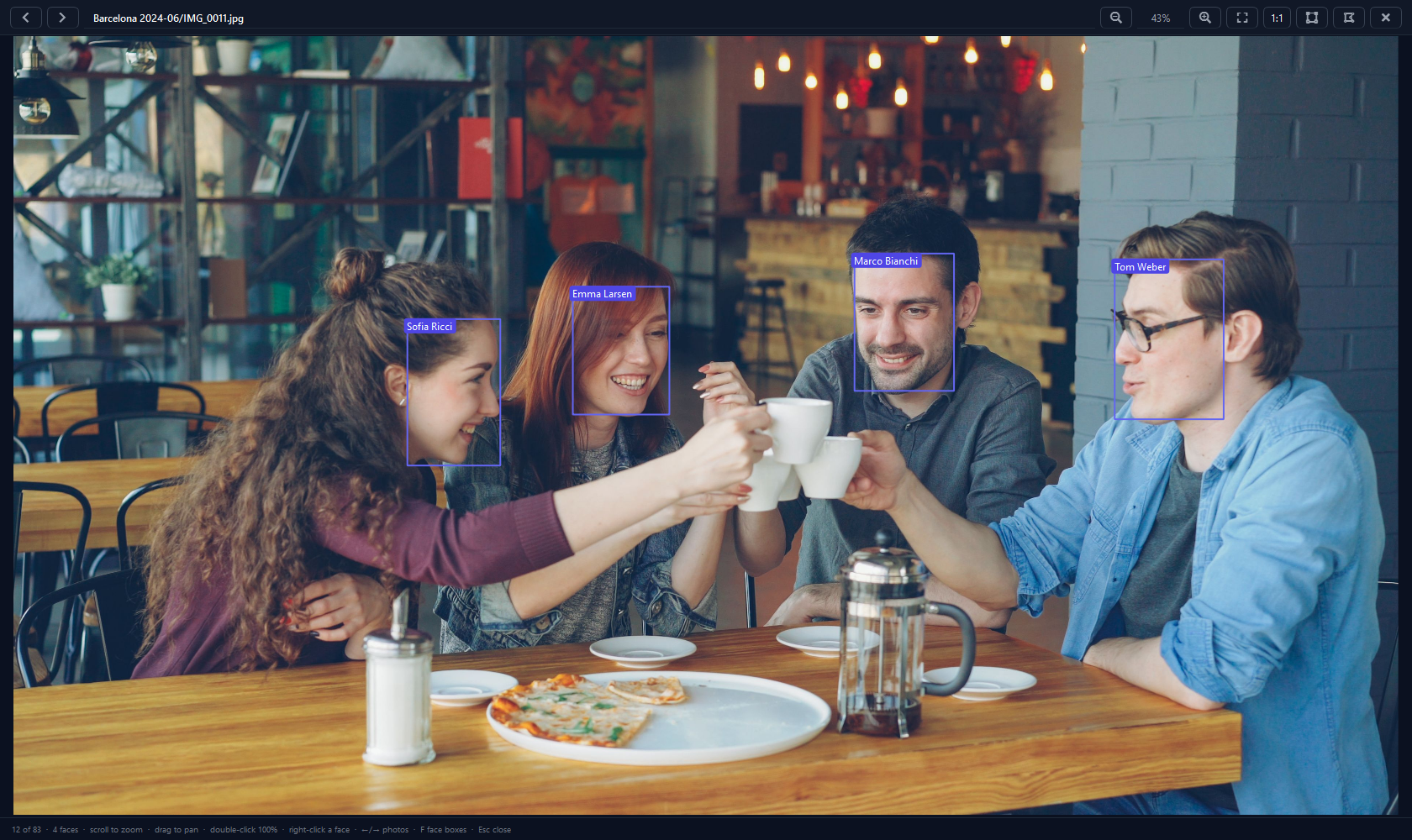
| Scroll | Zoom towards the pointer |
| Drag | Pan |
| Double-click | Toggle between fit and 100% |
| ← → | Previous / next photo in the current listing |
| F | Hide or show the face boxes |
| Right-click a face | Name, confirm or ignore just that face |
| Esc | Close |
The right-click menu
Right-clicking a photo in any grid gives you the per-photo actions: View, Process (for photos still waiting), Re-detect faces, Detect objects, Extract text, Generate or Set description, Set date…, Set location…, a Tags ▸ and an Event ▸ submenu, Write new data, the correction and export actions, Reveal in the file manager, Copy file path, Reset to unprocessed…, Remove data… and Delete. If you right-click a photo that is part of your selection, the action applies to the whole selection.
Set date… is the one to reach for when a camera's clock was wrong. Shift by moves every selected photo by the same amount — hours for a timezone, days for a misread calendar — so the shoot keeps its order and spacing. Set all to gives them one date and time, which is what scans and undated photos need, since there is nothing there for a shift to move. A table shows each photo's current date beside its new one before you confirm. The corrected date is then yours: reprocessing never overwrites it, and the next Write new data stamps it into the photo's own EXIF, so other programs see it too.
Reset to unprocessed… is the start-over button for a handful of photos: it forgets everything the app worked out about them — the faces and who they are, the objects, quality, colours, text, dates and places, descriptions, duplicate grouping and events — and puts them back in the queue as if they had just been added. Run Process New Files afterwards and the app works it all out again. Your photo files are never touched, and the tags you added are kept. Two things to expect: if the last photo of a person or an event was among them, that person or event disappears too (the status line says so), and photos of a locked person are skipped.
Remove data… is the one to know about: it opens a checklist of what to strip from the selected photos — the people, the detected objects, the description, the location, the recognised text, the tags they arrived carrying, the tags you added, or the metadata the app wrote into the files — and the photos themselves are kept. It is how you undo a batch of work without touching the pictures. Nothing is ticked when it opens, an amber line warns you about anything that will not come back, and any item the selected photos have nothing for is greyed out with the reason.
11
Duplicates — clearing out the near-copies
Burst frames, re-saved exports, edited copies and accidental re-imports. The app groups them and helps you keep the best one.
|
Figure 9 · Duplicates
Three sets of near-duplicates, one row each. The first photo in a row is the copy the app suggests keeping, and the tick under each one is what you are actually keeping — the suggestion is a starting point, not a decision. The border colours are the useful part: they say how close each copy is to the one you are keeping, so a row of identical re-saves and a row of burst frames that are genuinely different photographs do not look alike. |
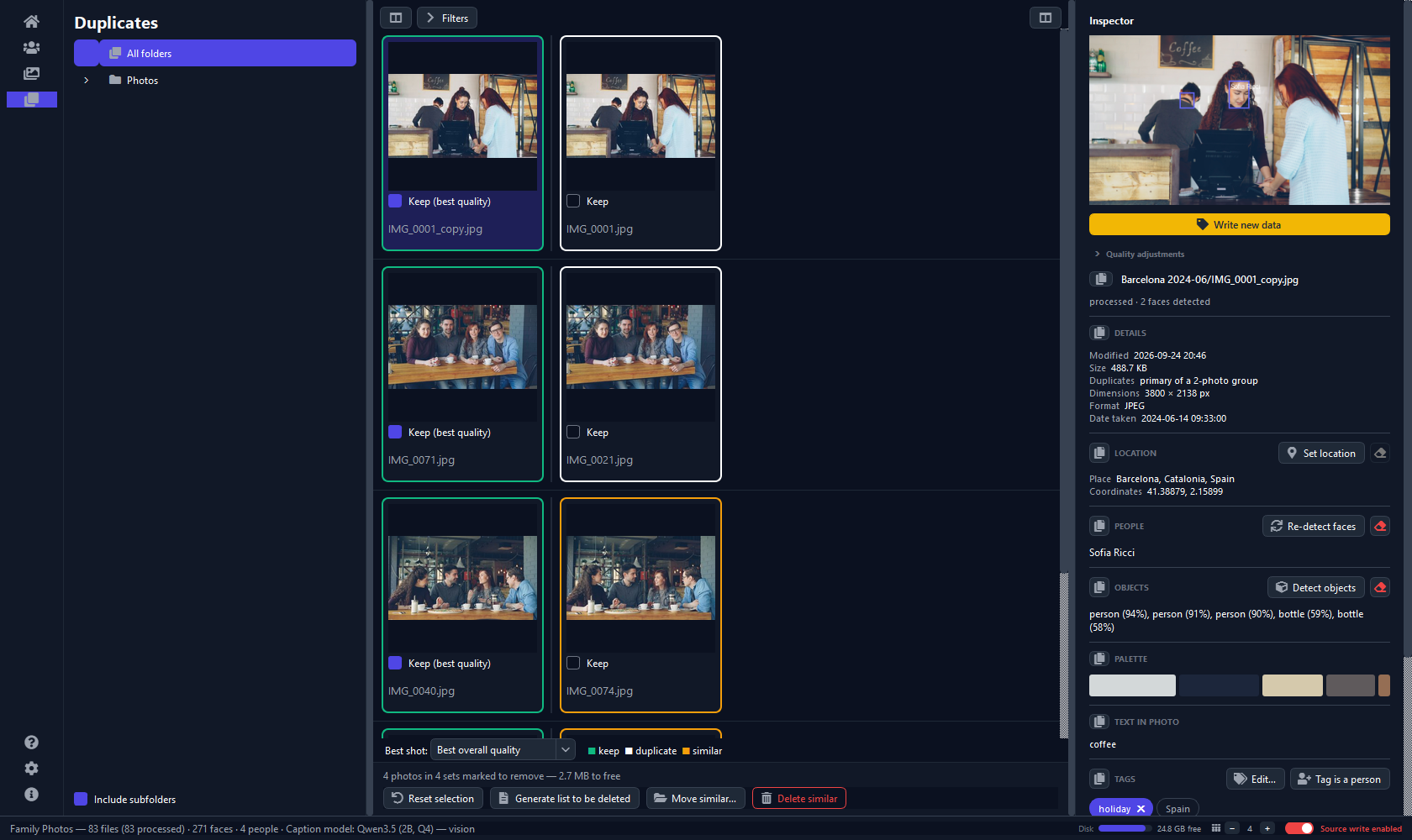
Reading the borders
| Green | Ticked to keep. |
| White | A true duplicate — the same picture, as an identical file or a re-save. Safe to remove. |
| Orange | Merely similar — a different frame from the same moment. Worth a second look. The app is strict about this: two burst frames can look almost identical to it even when your subject has turned their head, so anything short of the same picture is called similar and left to you. |
Choosing which copy to keep
The Best shot dropdown decides which copy of each set is ticked by default, and the checkbox tells you why — Keep (sharpest), Keep (newest). The default is Best overall quality: mostly sharpness, plus exposure, contrast and colour, so in a burst you keep the frame that is actually in focus. The other options are Most representative (the copy most like all the others — it ignores image quality, so in a burst the one crisp frame is the least typical and loses), Sharpest, Best exposed, Biggest file, Highest resolution, Newest, Oldest, Most faces, Largest face and Sharpest face. Changing it re-ranks every set and resets the ticks. It also decides which photo wears the 1 badge in the Organizer's grid and which one the Best shot only filter shows, so every part of the app agrees about which copy you are keeping.
One rule overrides every option: a B&W / Retro copy saved beside its original is never kept instead of that original, even when it scores higher — a toned copy often looks better exposed. It follows its original in the set, unticked like any other similar photo.
Acting on them
- Generate list to be deleted — saves the plan as a CSV or text file without touching a single photo. A good first step.
- Move similar… — moves the unticked copies to a folder you
choose, flat or mirroring their current layout, with a
moved_photos.csvrecord of what went where. - Delete similar — sends them to the system Trash, so they are recoverable.
All three open the same confirmation window first: every affected photo listed with its size, the totals, and how much disk space you would free. Locked people's photos are excluded automatically.
12
Events and places
Dates and coordinates are what your camera recorded. Events and place names are what the app makes of them: the trip rather than the timestamp, the city rather than the latitude.
Events
Find Events groups your photos into trips and occasions — a run of photos taken close together in time and in one place — and names each one from where and when it happened: Barri Gòtic — 11–15 Apr 2025. They appear in the Organizer's Events list and as a filter category.
Each event's ⋮ menu offers:
- Rename event… — your own name also freezes the event, so a later run leaves it and its photos alone.
- Merge events… — fold others into this one, for a trip the app split in two.
- Delete event… — the photos stay in the project. The confirmation asks whether to let a later run regroup them; leave it unticked and the deletion sticks.
- Reset to automatic name — undoes your naming, your merges and any photos you sorted in by hand, handing the event back to the app.
You can curate them too: select photos and use the right-click Event ▸ submenu to start a new event, move them into an existing one, or take them out. Anything you place by hand stays put.
Because an event listing is an ordinary listing, every action bar button works on a whole trip — export it, rename it, share it.
Places
Photos with GPS coordinates get a place name from an offline database that ships with the app — no lookup, no network. If a place is missing, install a denser database from Settings → Models & data and press Re-resolve Places.
Setting a location by hand
For scans, a camera with no GPS, or a position that is simply wrong: select one photo or a whole batch, then Set location… from the inspector or the right-click menu. Type a place name and pick from the suggestions, or enter coordinates — each fills the other in. Free text works too: "Grandma's house" gets no invented coordinates but still drives the Place filter, event names and file renaming.
A location you set by hand is protected: reprocessing never overwrites it, and it is written into the photo when you next press Write new data.
13
Acting on photos
Select photos in the Organizer — one, a boxful, or the whole project — and use the action bar under the grid. Every one of these opens a confirmation window listing exactly what it will do first.
| Save copies outside your photo folders Share safely, Export selected, Enhance and B&W / Retro (into its STYLED folder) make copies to take out of the project. Pick a folder inside one of your media folders and the window warns you in amber: the next Rescan would add the copies to your library as new photos. Every photo would then appear twice, the copies would sit next to their originals on the Duplicates page — where Delete similar could keep a copy and offer the original — and the people in them would be detected all over again. Choose a folder outside, or go ahead if that really is what you want. |
Fix quality
Corrects the problems the Quality filter finds: exposure, contrast,
white balance and sharpness. Choose where the corrected versions go — a
FIXED folder mirroring your structure, one flat folder, beside each
original as name_FIXED.jpg, or replacing the originals in place.
Corrections keep each photo's date, GPS and orientation.
| What a fix can and can't do These are gentle, automatic corrections. A blown-out white highlight and a genuinely out-of-focus shot can be improved but not recovered — the detail was never captured. Sharpening restores edge crispness; it cannot invent detail. |
Fix orientation
Straightens sideways and upside-down scans. Choose Set the orientation tag (lossless — it just marks which way is up) or rotate the pixels and re-save, and where the result goes. The people you have named come with the photo either way.
Detection reads faces, so it deliberately gives up on a photo it can't judge rather than guessing. For those, use "Turn every selected photo by" and pick 90°, 180° or 270°.
Share safely
Exports copies with faces blurred — for posting a photo of your own child without posting five other people's. Tick the people who should stay visible; every other face, named or not, is blurred. Nothing starts ticked, so pressing Export straight away hides everyone.
| Leave the metadata scrub on The Remove location, camera and keyword data box is on by default and worth keeping on: blurring faces doesn't help if the file still carries the GPS coordinates of your home and the names of everyone in it. |
Photos that haven't been processed yet are excluded and reported — with no detected faces they would export completely unblurred. Always glance at the results before sharing.
Export selected
Saves copies in the format you choose — most often JPEG, so photos your phone stored as HEIC or your camera stored as RAW can be opened by anything. Pick a format and a quality; the table shows what each photo is now and what it will become. Photos already in the target format are copied unchanged, so they lose no quality at all. A camera RAW's copy keeps its date and location unless you tick Remove location, camera and keyword data, and a 16-bit black & white scan keeps its full tonal depth as PNG or TIFF.
B&W / Retro
Makes black & white, toned and vintage copies to print, post or frame. Pick a look — five black & white mixes (including the classic red filter that darkens a blue sky), sepia, selenium or cyanotype toning, or faded film, a warm ’70s grade and cross-processing — how strongly it applies, and any of three extras: film grain, a vignette and an instant-photo frame. The window shows your photo before and after, and the arrows step through the selection; what you see is what gets saved.
The copies go into a STYLED folder, flat or mirroring your structure,
or beside each original as name_SEPIA.jpg. They keep each photo's
date and place unless you tick Remove location, camera and
keyword data, and your originals are never touched. A big selection can
be stopped part-way, keeping whatever finished.
| Copies beside the originals join your library Saved beside the originals, the copies are added to the project with the same people named as in the original, and show up on the Duplicates page next to it. The original is always the photo kept there, never the copy — but the copy is left unticked, so tick it too if Delete similar should leave it alone. |
Enhance
Rebuilds small or low-resolution photos at up to four times the size, reconstructing detail a plain enlargement can only blur. This is the one for old scans, web-sized images and photos a messenger app squashed.
| Not a fix for blur It cannot sharpen a full-size photo that is out of focus — that's a different problem, and on a big soft photo it makes things slightly worse. Photos above about 12 megapixels are refused, and the window says so and points you at Fix quality instead. It is also slow — the window estimates the time before you commit, so a big selection is worth starting when you don't need the app — and you can stop it part-way, keeping whatever finished. |
Rename selected
Builds file names out of what the app knows. Click the building blocks —
{date}, {city}, {people},
{nnn} — and a table shows every current name → new name
as you type. IMG_9942.jpg becomes
2024-12-25 - New York - John, Sarah.jpg. A missing detail never
leaves a gap, clashing names get a number, and the extension is always kept.
Rename the originals — everything the project knows follows the new name — or write renamed copies into a folder and leave the originals alone.
Move and Delete
Move selected files… moves them to a folder you choose, flat
or mirroring their layout, with a moved_photos.csv record.
Delete selected sends them to the system Trash, so they are
recoverable. Both take the photos out of the project and both skip locked
people's photos.
Generate list of selection
Saves a CSV or text list of the selected photos and their sizes. It touches nothing — useful for planning a clean-up before committing to it.
14
Writing back to your photos
Everything so far lives in the project. This is the step that makes it portable — so the work you did here shows up in Lightroom Classic, digiKam, Windows Explorer and anything else that reads photo metadata.
Write All New Data writes, into each photo's own metadata:
- People as keywords, so any photo app can search them.
- Named face boxes as standard XMP face regions — Lightroom Classic, digiKam and Windows draw the same named rectangles you see here.
- The caption, if the photo has one.
- A location you set by hand, as GPS coordinates.
- Object labels as keywords, if you enabled that in Settings.
- Your own tags as keywords. A tag the photo already carried from another program is left as it was, so removing your tag later never deletes the photo's own keyword.
The button turns amber whenever a photo's information differs from what was last written to it, so you always know when there is something new to save. Individual photos have the same button in the inspector.
Remove Metadata From Files strips it all out again — but only what this app wrote. Keywords and captions your photos arrived carrying from another program are preserved, both by a write and by a removal.
| Camera RAW files are never written to NEF, CR2, CR3, ARW, DNG, ORF, RW2, RAF and PEF files are read, analysed and searched like any other photo, but nothing is ever written into them — a RAW is your camera's untouched original. Their people and captions stay in the project. Use Export selected… to hand them over as ordinary JPEGs. Every copy the app makes of a RAW — exported, fixed, straightened, enhanced or styled — keeps its capture date and location unless you ask for them removed, so a fixed copy saved beside the original lands in the same event. (A Share safely copy carries no metadata at all, as always.) Reading them uses your operating system's own decoder: macOS reads them as they come, Windows needs Microsoft's free Raw Image Extension from the Store, and Linux has no such decoder at all — there a RAW file is still listed and counted in your project, but it cannot be opened or analysed. |
15
Keeping your originals safe
The app only ever modifies a photo file because you asked it to, and it says what it is about to do first. This section is the short list of what those moments are, and how to make them impossible.
The read-only switch
In the bottom-right corner of the window, past the disk meters, is a switch controlling whether the app may touch your original photos at all:
- 🟢 Source read-only — your originals are locked. Nothing can modify, move or delete them.
- 🔴 Source write enabled — the app may change them. This is how a fresh install starts.
The colour describes the consequence, not on/off: green means your photos are safe. Locking blocks metadata writes, in-place corrections, renaming originals, and moving or deleting photos. Everything else keeps working — scanning, processing, recognition, duplicates, captions, and every action that writes a copy. Blocked buttons grey out with a padlock tooltip rather than failing when clicked.
Back up before the destructive actions
| Have a backup The app is careful — deletions go to the Trash, in-place writes are atomic, every destructive action confirms first and lists exactly what it will touch — but it can modify and delete your photos when you ask it to. Have a working backup before you use Replace the originals, Rename the originals, Move or Delete for the first time. |
What is never at risk
- Deleting a project never deletes photos.
- Removing a folder from a project never deletes photos.
- Reprocessing never modifies a photo file.
- Share, Export, B&W / Retro, Enhance and the copy modes of Fix quality, Fix orientation and Rename only ever write new files.
Why a backup still matters
That list is what the app controls, and it is a short list on purpose. Here is everything done to keep your originals safe: nothing is modified unless you ask for it by name; every action that can change a file confirms first and tells you exactly which photos it will touch; the copy modes are the default, so the destructive ones have to be chosen; a deletion goes to the Trash, not into nothing; an in-place write goes to a temporary file which then replaces the original in one step, so an interrupted write cannot leave you with half a photo; and source read-only turns the whole category off app-wide.
None of that can promise your only copy survives, and it would be dishonest to imply otherwise — because your photos do not live inside this app. They are files on a disk managed by your operating system, and the things most likely to cost you a photograph have nothing to do with which program last touched it: a drive beginning to fail, a full disk, a power cut, a cloud client syncing a folder while something else writes to it, a backup tool restoring an older version over a newer one, another program editing the same file, or simply the wrong folder dragged somewhere in a file manager. Software that writes to a real filesystem depends on all of it being healthy.
So the honest position, and the one the licence agreement states: this app is provided as it is, it cannot be warranted error-free, and responsibility for having a copy of your photographs rests with you — see sections 6, 12 and 13 of the agreement, in full on the About page. That is not a way of shrugging off the care described above; it is the recognition that no application can stand behind an outcome that depends on hardware, an operating system and other programs it has no control over.
| One backup covers all of it The useful thing about a working backup is that it does not care what went wrong — a bug here, a dying disk, or your own slip of the hand are the same problem to it, and the same fix. If you keep only one safety habit while using this app, keep that one. Time Machine, a second drive, or a copy anywhere that is not the drive holding the originals will all do. |
16
Settings
Preferences that apply to every project, and the place where the optional downloads live. Nothing here needs setting before you start — the defaults are what most of this guide describes.
|
Figure 10 · Settings
The top of Settings. Appearance comes first — the theme is chosen there — then the optional downloads, the optional Ollama server and the face-recognition defaults; the rest of the nine sections are further down. Each section groups one kind of decision and carries its own Reset to default, so experimenting with one is never a reason to lose the rest. A few settings — theme and interface size — take effect at the next launch; the rest apply as you change them. |
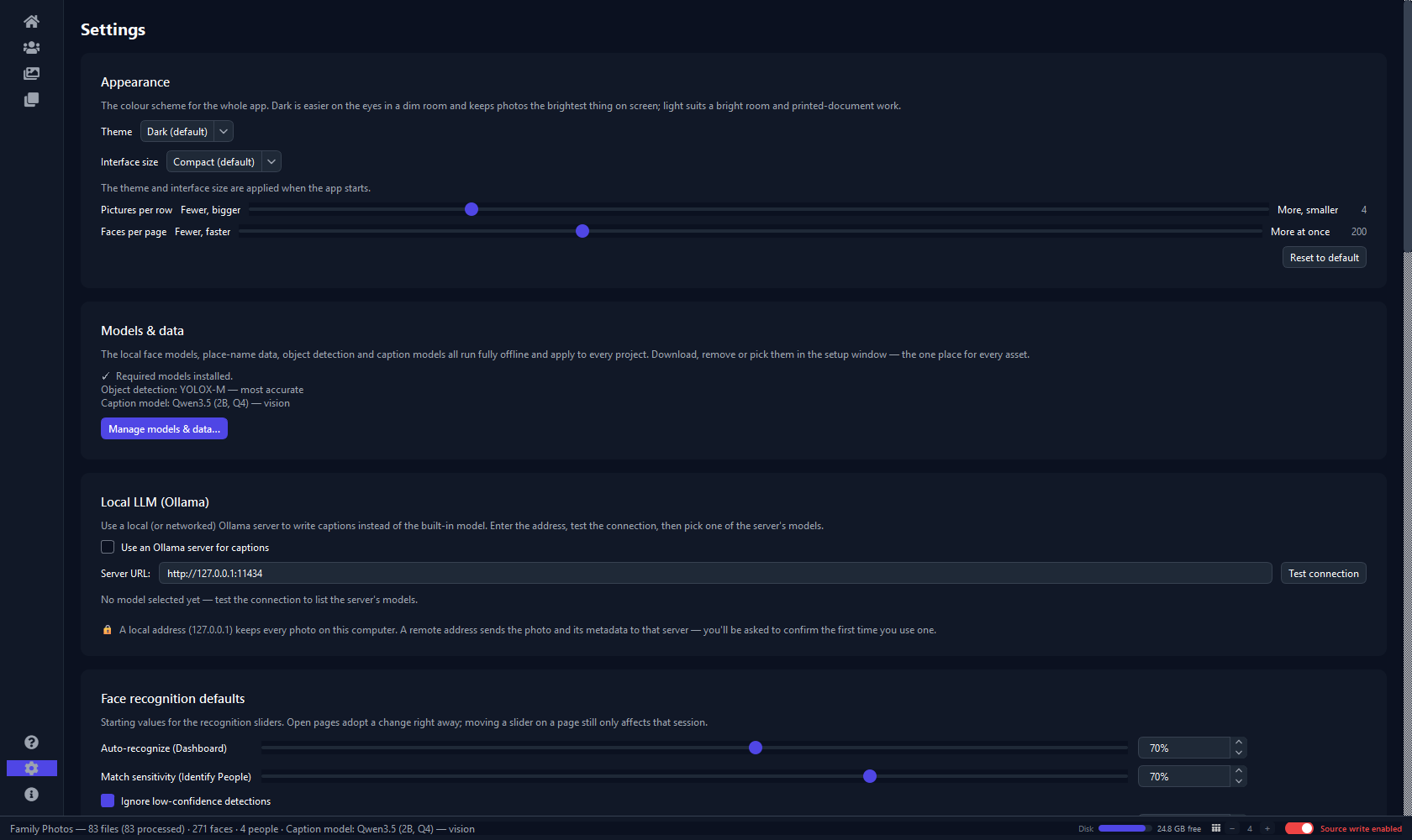
| Appearance | Dark or light theme (see below) and interface size — how big the app’s own text and controls are (both take effect on restart) — plus pictures per line and faces per page, which apply immediately. |
| Face recognition | The default auto-recognise and match-sensitivity levels for new sessions. |
| After processing | Which follow-up steps a Process run does on its own — face groups, duplicates, quality, colours, events, objects, rotation, text. Each says what it costs. |
| Metadata write-back | Whether detected object labels are written as keywords alongside people. |
| Fix quality | The output mode pre-selected in the Fix dialog, and whether fixed copies are processed automatically. |
| Duplicates | The Best shot criterion, plus whether near-duplicates share face matches and locations. |
| Models & data | Download, install-from-file or remove the optional models: object detection, caption models, and denser place databases. |
| Ollama | Optional: point captioning at your own local language-model server instead of the built-in one. |
| History log | How big the record of past runs may grow, and the View logs… button that opens it. |
| The one setting that can send photos off your computer The Ollama backend is off by default. Turned on and pointed at a server on your own machine, everything still stays local. Pointed at a server elsewhere, your photos are sent to it — the app asks you to confirm that once, explicitly. Left off, captions run on the built-in model and nothing leaves the computer. |
Light or dark
Every screenshot in this guide shows the app in its default dark theme. There is a light one too, and it is the same app in every other respect — same layout, same buttons, same pages.
|
Figure 11 · Organizer · light theme
The Organizer from Figure 4, in the light theme. Only the app's own surfaces change. The face boxes and the little file-type badges keep their colours in both themes, because they are drawn on top of your photographs and have to stand out against the picture, not against the app. |
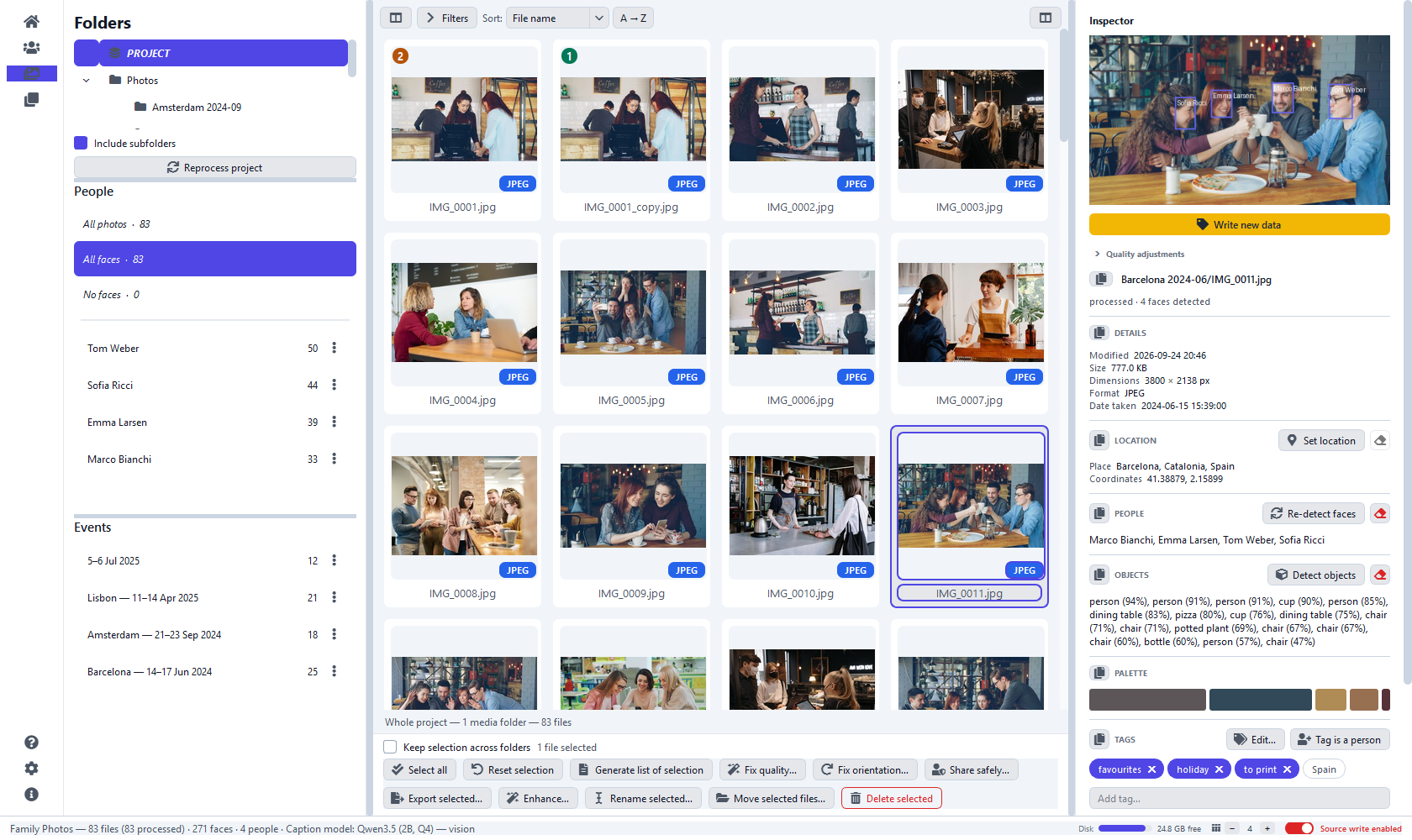
To switch, open Settings → Appearance → Theme and pick Light or Dark, then close and reopen the app — the page tells you in amber that a restart is waiting, and everything carries on as before until you do. The choice is yours and is kept for every project.
Which to pick is a matter of the room as much as of taste. Dark is easier on the eyes in a dim room and keeps your photos the brightest thing on the screen. Light suits a bright room, and work that is more reading than looking — long lists of names and tags. The copy of this guide built into the app follows whichever theme you choose.
What the app has already done
Every long job — processing, grouping, duplicates, events, the catch-up passes, writing metadata — records what it did, when, how long it took and what it found. Settings → History log → View logs… opens that record.
It answers the questions a status message cannot, because the status line is replaced by the next one: why was last night's run slow, how many photos did that actually touch, what failed while I was away. A run writes one line when it starts and another when it finishes, so a job that was interrupted — or that you stopped — still leaves a trace. Every project shares one log, and the project column says which run belongs to which.
| It stays on your computer, like everything else The log is a plain text file in the app's own data folder, never sent anywhere. Set a size limit in the same section; the app trims it for you. |
17
Questions and fixes
The things people actually run into, and what to do about each. Most of them are the app behaving as intended in a way that is not obvious the first time.
How long will processing take?
Roughly a minute for every 35–45 photos with the default settings, though it varies with your computer and which optional passes are on — see How long does this take? above for real numbers. The one step that can genuinely take several minutes rather than seconds is the first Recognise Faces run against a large backlog of unreviewed faces; after that, recognising people you have already named is close to instant, however big the library.
A photo shows no faces
Check its bottom-left corner. An amber ⚠ means it hasn't been analysed yet — run Process New Files, or right-click the photo and choose Process. No badge means the detector genuinely found none; Re-detect faces in the inspector tries again.
A black & white scan looks white, or found no faces
Version 1.0 read 16-bit greyscale files — the usual format for a scanned black & white negative — as solid white: a white thumbnail, no faces, and a Quality filter calling it overexposed. It reads them properly now, but photos processed before the update keep what was worked out then. Select them, right-click and choose Reset to unprocessed… (it reads Reset 12 photos to unprocessed… for several), then run Process New Files.
The same person is in two groups
Normal, and easy to fix: name the second group with the same name and it merges into the first. Lowering Match sensitivity makes the recogniser bolder; raising it makes it more cautious.
It's tagging the wrong person
Raise Match sensitivity, then tick the wrong faces and press Remove. To approve the right ones, leave the person's name in the box and press Assign — on someone already named that confirms rather than renames. The recogniser only learns from confirmed faces, so this is what improves it.
Where is the help?
Press ? in the left-hand icon bar. This guide opens as a page of the app, so it is there whether or not you are online. Almost every control also explains itself if you rest the pointer on it — which is where the exact reason a button is greyed out lives, too.
A button is greyed out
Hover it — the tooltip always says why. The usual reasons are: a job is running, the source read-only switch is on, the free trial is active, or the action needs an optional model that isn't installed.
My city isn't in the place list
The bundled database covers towns above about 15,000 people. Install a denser one from Settings → Models & data and press Re-resolve Places. True hamlets are in no database — use Set location… to type the name yourself.
Nothing shows in the Objects, Colour, Quality or Event filter
Each greys out until the matching pass has found something. Run Detect Objects, Extract Colours, Analyse Quality or Find Events from the Dashboard. Objects additionally needs its optional model.
The Tags filter is greyed out
It has nothing to offer yet: none of your photos arrived with keywords, and you have not tagged any. Add a tag — see Tagging your photos — and it comes alive. The Untagged special filter then shows every photo still waiting for one.
My tags don't show up in Lightroom or Windows
They are in the project until you write them out. Press Write new data for one photo, or Write All New Data on the Dashboard for all of them — the button is amber while anything is waiting. Camera RAW files are the exception: nothing is written into them, so their tags stay in the project.
The app is too dark (or too bright) for my room
Switch the theme in Settings → Appearance → Theme and restart the app — see Light or dark.
Events came out empty
Events are built from capture dates. If the Dashboard reports photos as undated, run Process New Files first — scanned photos often carry no date at all, and those correctly land in no event.
Moving a library to another computer
Export the project (the card's ⋮ menu), including the original photos if the other machine doesn't have them. Import it there and point it at the folders — every person, name, caption and confirmation comes across.
How do I know if there's a new version?
You check — the app can't tell you, because it never contacts us. Releases go up at itfanatic.com/image-organizer, and we may also email the address you bought with. See Updates above.
Closing while something is running
The app asks whether to wait and finish, stop and quit, or keep working, and shows what is still going. Nothing is lost either way: every change is saved as it happens.