PrivacyFirst Photo Organizer
It knows who is in your photos. Nobody else does.
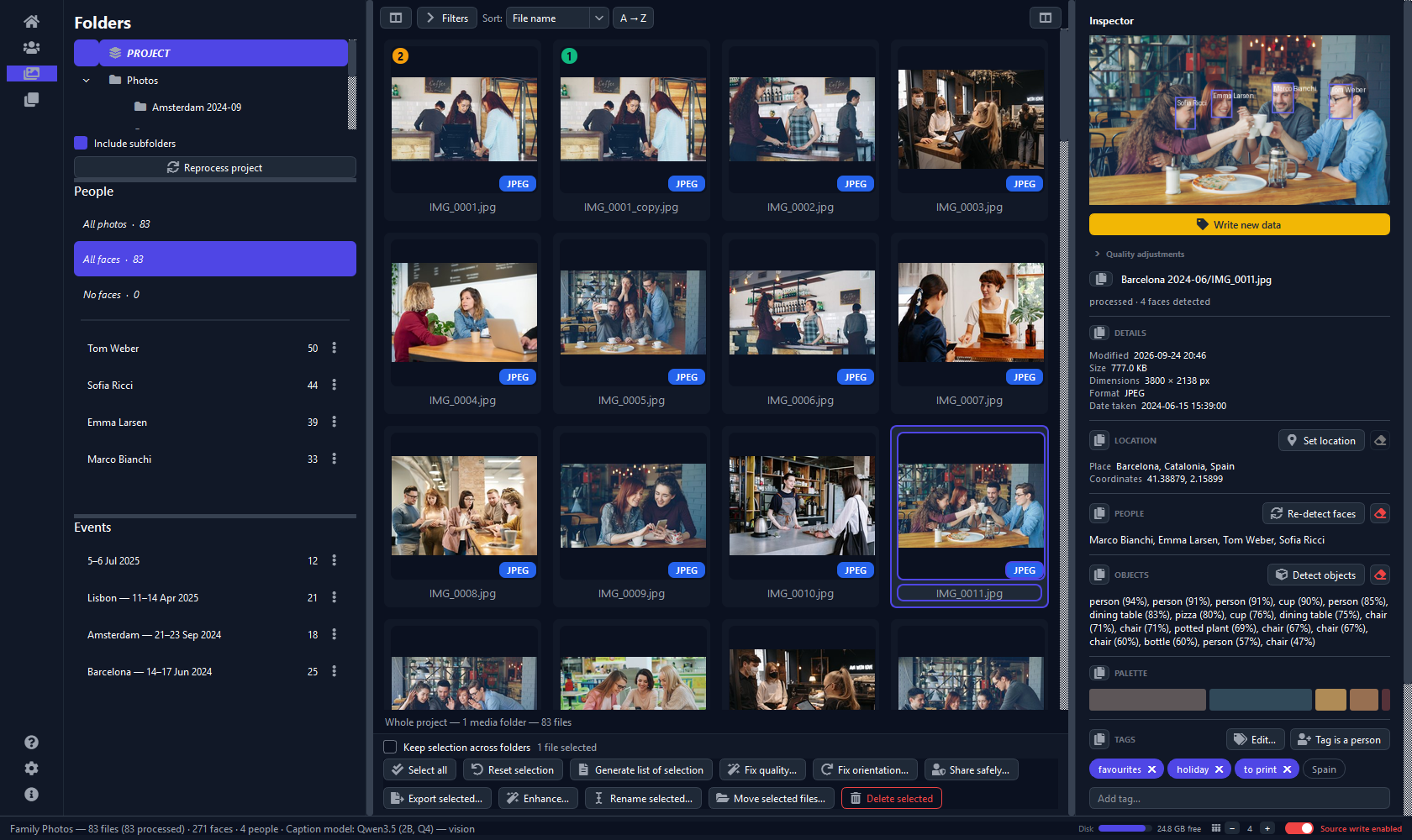
Point it at your photo folders. Machine learning finds every face and groups the same person together on its own; you put a name to a group, and it recognises that person through the rest of your library — getting better each time you confirm one. The names are written back into the files themselves, so Lightroom, digiKam and Windows all read them. None of it ever leaves your computer — the recognition runs on your processor, not on somebody's server.
One-time purchase. No account, nothing uploaded — ever. Buying opens Stripe’s secure checkout — they take the payment and are the seller of record.
- 100% offline
- No account, no cloud
- macOS, Windows & Linux
- One-time purchase
Every other tool wants your photos on its servers first
That is the deal on offer nearly everywhere: hand over twenty years of family pictures, and in return something will sort them. This does the same work on hardware you already own.
Nothing leaves your machine
No accounts, no telemetry, no crash reporting, no update check. The recognition runs on your own processor. You can pull the network cable out and it behaves identically.
Your folders stay your folders
It never copies or imports your library. A project points at the folders you already have and keeps what it learns in its own small database alongside. Delete the project and your photos are untouched.
No seat count, no lock-in
This licence is yours, not a seat on someone else's server — no seat count, and no server that can be switched off in three years and take your library's organisation with it.
How it works
Four steps from a folder of chaos to a searchable library
- Create a project and add your photo folders. Nothing is copied and nothing is moved — you are pointing at what you already have.
- Press Process New Files. It reads the photos: faces, capture dates, places, quality, colours, duplicates and events. You can keep using the app while it runs.
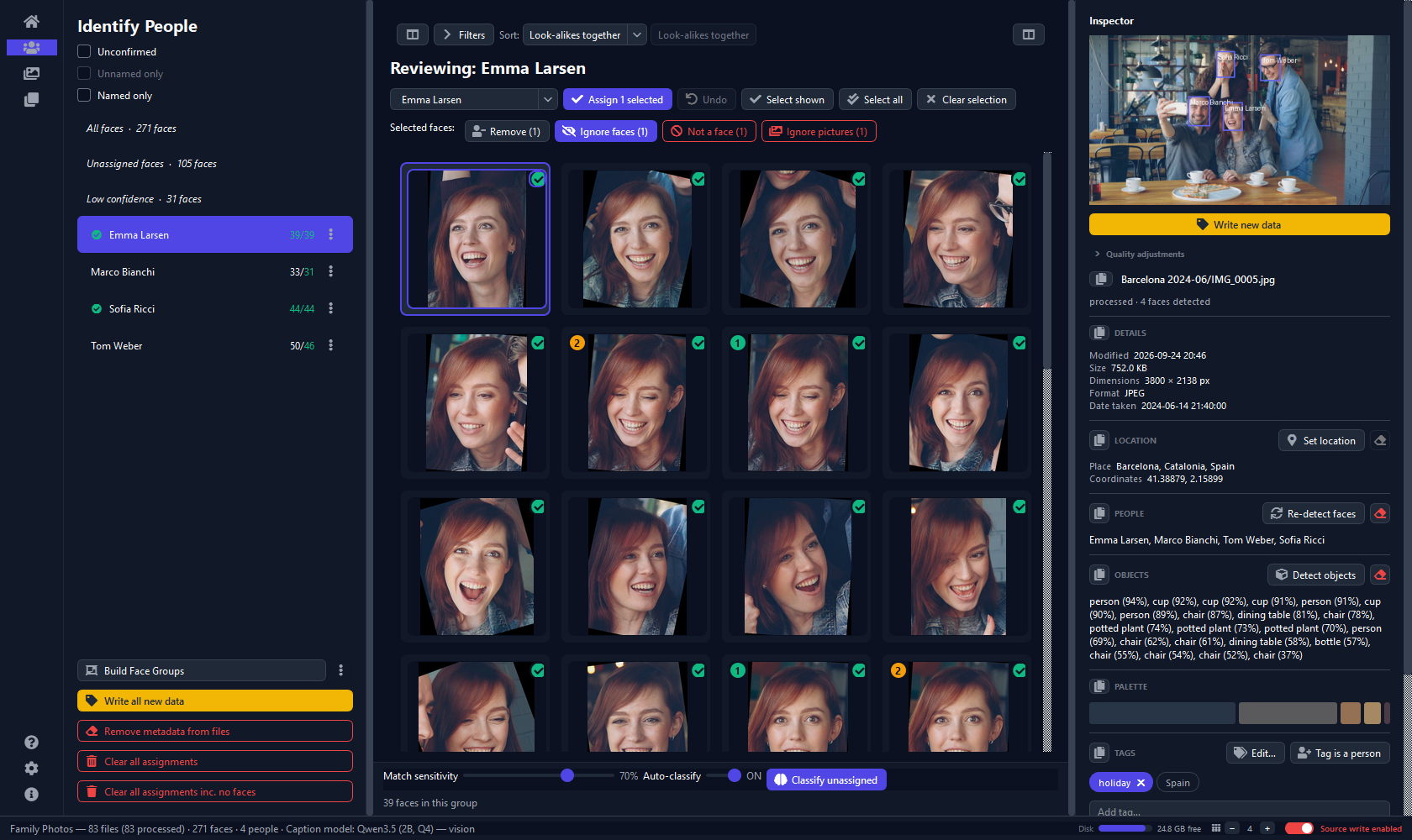
- Name the groups. The faces are already sorted by who they appear to be. Type a name per group; after a few, press Classify unassigned and it starts tagging the rest itself, improving as you confirm its guesses.
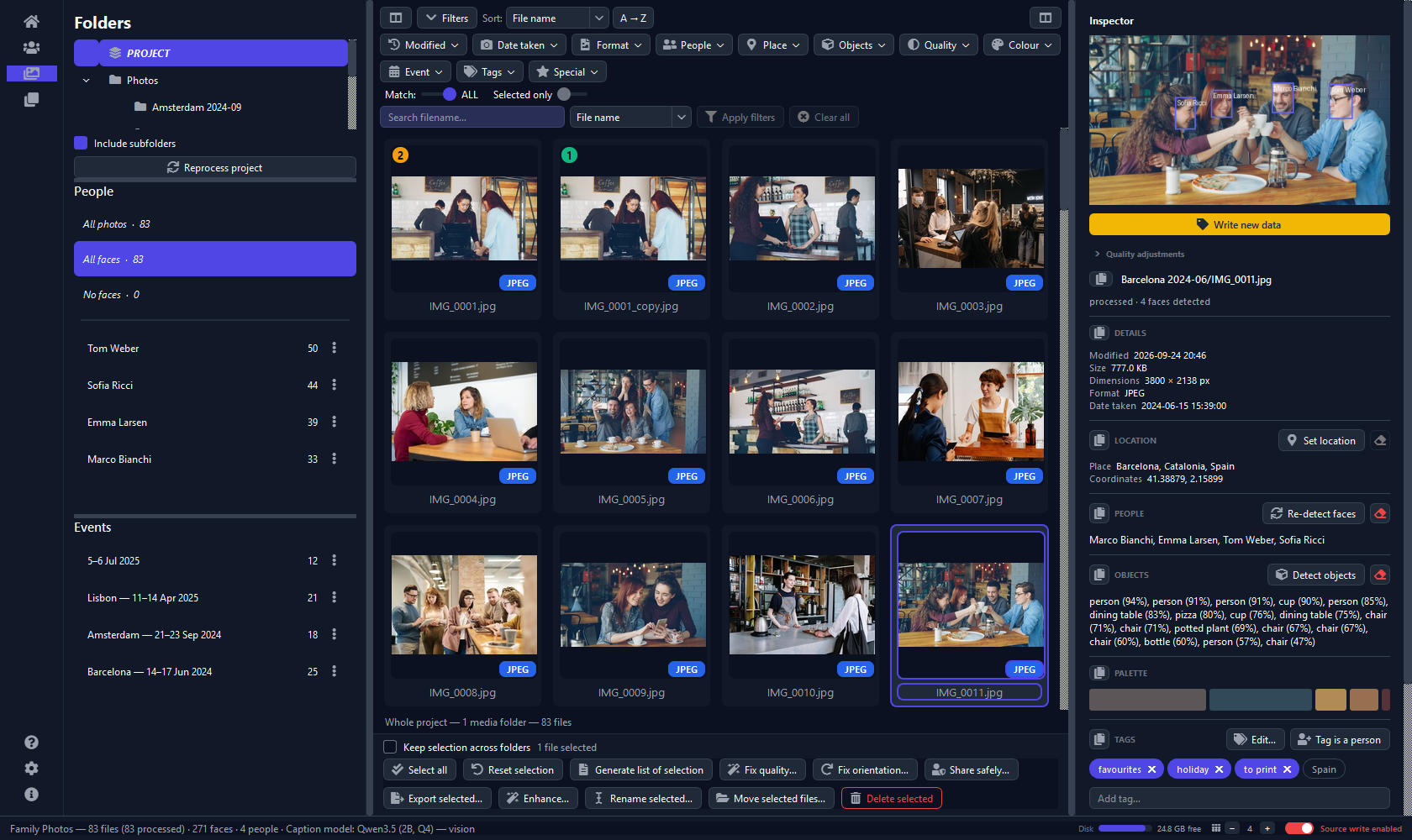
- Use the library — browse by person, folder or trip, filter by anything it worked out, and press Write All New Data when you want it saved into the photo files themselves.
What you get
The parts you will actually use, rather than a feature matrix.
Face grouping that learns
Detects and clusters faces across the whole library. Name a handful of groups and it classifies the remainder, including the awkward ones — profiles, sunglasses, twenty years apart.
Filters that stack
Person, date, place, camera, orientation, quality, colour, event, tag. Combine them and the grid narrows as you go — "photos of Anna in Lisbon that came out sharp" is three clicks.
Events and places
Groups a run of photographs into the trip or occasion it actually was, and turns GPS coordinates into place names using a local database — no lookup service involved.
Duplicate finder
Finds true duplicates and near-duplicates — the burst of eleven near-identical shots — and shows them side by side so you keep the good one deliberately.
Write-back to your files
Names, captions and your own tags are written into the photographs themselves as standard metadata, so every other program that reads tags can see them. Your work is not trapped in this app.
Optional local extras
Object detection for 80 everyday things, a local language model that writes a sentence describing each photo, and bigger place databases. Downloads you start yourself — never automatic.
Your own tags
The words only you know — receipt, Anna's wedding, to print. Tag one photo or a whole selection at once, tidy them up in the tag editor, and find them again with a filter. They go into the files as ordinary keywords.
Black & white and retro copies
Five black & white mixes, sepia, selenium and cyanotype toning, faded film, a warm ’70s grade and cross-processing — with optional grain, a vignette or an instant-photo frame. Before and after, side by side; your originals are never touched.
Light or dark
A dark theme that keeps your photos the brightest thing on the screen, and a light one for a bright room. The size of the app's own text and controls is adjustable too.
The part that matters
The tags go into your photos, not into a database you can't leave
Most organisers keep everything they know inside their own catalogue. Stop using the program and the work evaporates. This writes names, captions and keywords into the image files as standard metadata — so Lightroom, digiKam, Photos and Windows Explorer all read the same names, and so does whatever you switch to in ten years.
Before you pay anything
The trial is the real application
Not a demo, not a watermarked build, and not a fourteen-day clock. It will scan and organise up to 300 of your own photos so you can see exactly how it copes with your library, your faces and your filing habits. No account, no card, no sign-up.
What the trial does
- Finds and groups every face in those 300 photos
- Lets you name people and watch it classify the rest
- Dates, places, events, quality, colours, duplicates
- The full Organizer, filters, inspector and viewer
What it will not do
The trial is read-only. It shows you everything it found, but it will not write tags back to your files, rename, move, delete, export or make copies of anything — black & white and retro copies included. Buying is what unlocks writing.
Downloads
Every download is the same application. An installer puts it where your system keeps programs; a portable build runs from wherever you unpack it and writes nothing to system folders. Either is a full copy — the choice changes nothing about the app.
Windows
Mac · Apple Silicon
Mac · Intel
Linux
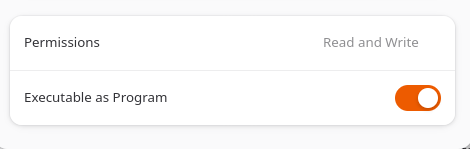
chmod +x it, or open its
Properties and turn on
Executable as Program — older file managers call it
Allow executing file as program. Then run it; there is
nothing to install.
| File | SHA-256 |
|---|---|
PrivacyFirstPhotoOrganizer-windows-x64-setup.exe |
40cbac84d24303ac96db05508bba732976b52bbe4aa534ba1bae2b4c94034450 |
PrivacyFirstPhotoOrganizer-windows-x64-setup.exe.zip |
b191bc211f856408f6189e2531eaf3590e04c400f0223fe03b4c26be672cf4e6 |
PrivacyFirstPhotoOrganizer-windows-x64.zip |
b91332cb50694b4a3ed941ba71055d4e15531f3503c6770d69345948b59b5b9f |
PrivacyFirstPhotoOrganizer-linux-x86_64.AppImage |
136725b6a12246f30063847c3a5345e3e9ea469702bf3dd985e5e2123c732f43 |
PrivacyFirstPhotoOrganizer-linux-x86_64.tar.gz |
138995e270e4a19ce8bdc568bb494cdb9b8363ef1aa48765a0ba6e395328cd10 |
PrivacyFirstPhotoOrganizer-macos-silicon.dmg |
e0b9d493c3cc36db02317c3ffbd67bfed7cd905628c40489f5c898c55998b50b |
PrivacyFirstPhotoOrganizer-macos-silicon.zip |
3941d132674ffe698d520b9db2266ca58ed483c16b07be6f4e469198a28ec612 |
PrivacyFirstPhotoOrganizer-macos-x86_64.dmg |
6dbe375f1f4f38d8781d4bae61a9e0dc2065bb993c05f27f9551ce855cfff80e |
PrivacyFirstPhotoOrganizer-macos-x86_64.zip |
8b030acfa66267372c0405589dd6f9e18a2bb6884e2d06c7e7be9c3d31ba85f8 |
Pricing
One payment. Every 1.x release. Yours offline, forever.
One payment. The licence is a file you keep — it works offline, on every computer you own, with no activation server that could one day stop answering.
- Licence file by email, usually within a minute
- Every 1.x release — new features and fixes included
- Install on all the computers you own
- Works offline forever; no activation server to outlive
- 30-day refund, no justification needed
- No subscription, no renewal, nothing to cancel
What happens after you pay
-
You get an email with your licence file attached — a small
.lic— usually within a minute. - In the app, open About → Import license… and choose that file.
- That is the entire activation. The app verifies the licence, stores it, and never contacts us again.
Future major versions
Your licence covers every 1.x release. A future 2.0 will be a paid upgrade at a reduced price — and if you bought within 60 days before that release, we send you the new licence free, without you having to ask.
Buying through an app store
Some people would rather buy through the store their computer already signs them into. The Windows version is on the Microsoft Store: it installs as the same free trial and unlocks with a full-version purchase inside the Store, or with a licence file bought here. The Mac version is on the Mac App Store: it is paid for up front, with no free trial, and the purchase itself unlocks it — it does not take a licence file bought here.
Requirements
| macOS | macOS 26 — Apple Silicon and Intel, as two separate downloads |
|---|---|
| Windows | Windows 10 or later, 64-bit — tested on Windows 10 and 11 |
| Linux | glibc 2.35 or newer — Ubuntu 22.04+, Debian 12+, Fedora 36+, RHEL 9+. Two features are unavailable — see below |
| Processor | Any 64-bit CPU, 4 cores. On Windows and Linux, the built-in AI captions also need AVX2 — a maths instruction set Intel has shipped since 2013 (Core i3/i5/i7, 4th generation onward) and AMD since 2015 (every Ryzen has it). Any mainstream chip of the last decade qualifies; budget Celeron and Pentium laptop processors are the realistic exception — see below |
| Memory | 8 GB |
| Disk space | About 1.5 GB |
| Network | Not required, at any point |
| Everything needed to recognise faces | Ships inside the app — no separate download |
What differs by platform
Nearly everything — every face, every duplicate, every event — runs on models that ship inside the app and works identically on all three systems. Three things depend on what your operating system provides, and one on how old your processor is. All four are worth knowing before you buy.
| macOS | Windows | Linux | |
|---|---|---|---|
| Camera RAW — NEF, CR2, CR3, ARW, DNG… | Yes | Needs Microsoft's free Raw Image Extension | No |
| Text recognition — making receipts and documents searchable | Yes | Yes | No |
| Writing tags into HEIC photos in place | Yes | No — you get a fully tagged JPEG copy | No — you get a fully tagged JPEG copy |
| AI captions with the built-in model | Yes | Needs a CPU with AVX2 | Needs a CPU with AVX2 |
Questions
Do my photos really never get uploaded?
Really. All the recognition runs locally on your processor, and the application makes no network calls while it works. There are no accounts, no analytics and no telemetry. The only thing that ever touches our systems is the purchase itself, which is a name and an email address so we can issue your licence.
What exactly does it write into my photos?
Standard metadata — person names, your own tags as keywords, and captions if you enable them — written into the image files themselves, so other programs can read them. Camera RAW files are never written to; their tags stay in the project. It happens only when you press Write All New Data or one of the explicit correction actions. Keep backups anyway; that is good advice about any program that edits an irreplaceable library.
Is the licence tied to one computer?
No. It is a file, there is no activation limit, and there is no online check. Install it on the machines you own. It is personal to you, though — your name and email are inside it, which is why sharing it is not on.
What happens if your company disappears?
Nothing happens to your copy. The licence is verified offline by the application itself, so there is no server whose shutdown could disable your software. That is a property of the design, not a promise about our longevity.
The download warns me it is unsafe. Is it?
No, and the warning is not a finding about the file. On Windows, SmartScreen is saying it does not recognise the download yet. It will also say Unknown publisher, and it says that about a signed installer: our certificate is one we issued ourselves, so it proves the bytes have not been altered since we built them, but it does not introduce us to Microsoft. Microsoft Edge runs the same check on the download itself: choose Delete ▾ → Keep anyway to save the file. When you run it, choose More info → Run anyway. Expect both again on each new version — the prompt follows how many people have downloaded a file, so a purchased certificate would fill in the publisher line without removing the screen. The user guide walks through it with screenshots, and every download is published with a checksum and a signature if you would rather check it yourself.
Can I get a refund?
Within 30 days, for any reason, without justifying it — see the refund policy. There is also a free trial of the real application, which is why refunds are rare enough that we can be relaxed about them.
How big a library can it handle?
Tens of thousands of photographs is ordinary. Processing is the slow part and it runs in the background while you carry on using the app; after that, browsing and filtering work against the project database and stay quick.
Try it on 300 of your own photos first
The trial is the real thing, read-only, with no account and no card. If it sorts your library the way you hoped, it is €24.99 to unlock writing.
Support
The user guide covers the whole application, with screenshots, and answers most of what comes up. After that there are two places, and which one you want depends on whether your question is about the software or about your order.
Everything below is for the version from this website. If you got the app from the Microsoft Store or the Mac App Store, that store sold it to you and handles the purchase — its own support page says what that means. All support, by version →
Bugs and feature requests
github.com/bl305/privacyfirst_photo_organizer_support — a public tracker, so you can watch what happens to what you filed instead of wondering whether an email went anywhere.
Purchases, licences and privacy
support@itfanatic.com — a licence that never arrived, a lost licence file, a refund, an invoice question, or a request to see or delete your data. A real person reads it.